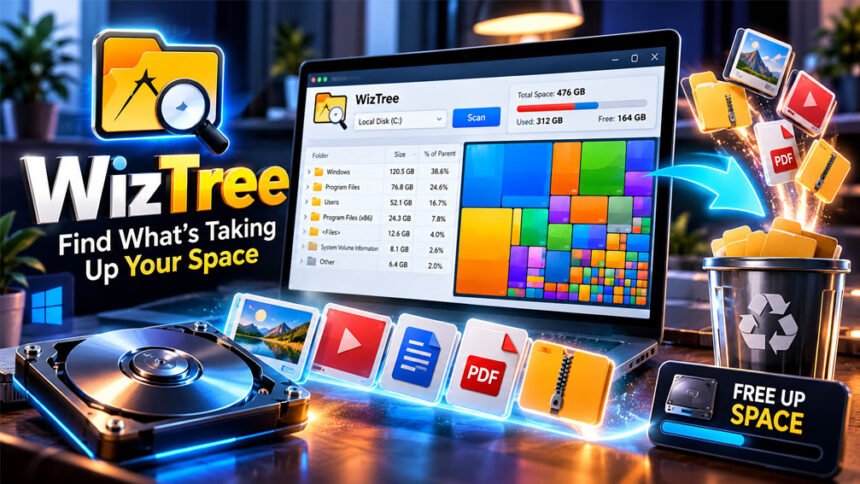
WizTree is a tool that helps Windows users find large files and folders on their computers. It scans a drive and shows which files use the most space. This helps users understand why their hard drive or SSD is running out of space.
WizTree is known for its fast scanning on NTFS drives. It also uses a visual chart to show how storage space is being used.
In this review, we will explain WizTree’s features, speed, safety, pricing, limits, and alternatives.
What Is WizTree?
WizTree is a disk space analyzer. It shows how much space files and folders use on your computer. It helps you find large files without opening every folder yourself.
For example, your computer may show a low disk space warning. You may not know what is taking up all the space. WizTree scans the drive and shows the largest files and folders.
It also has a colored chart called a treemap. Each rectangle represents a file. Large files appear as large blocks, while small files appear as small blocks.
This makes it easier to find large videos, backups, old downloads, and other files.
WizTree is developed by Antibody Software and is mainly made for Windows computers. One collected source also mentions a separate Mac application, but its current availability has not been confirmed.
WizTree does not clean your computer automatically. It helps you find files, but you must decide which ones are safe to delete.
How Does WizTree Work?
WizTree uses different methods to scan drives. Its main speed advantage comes from how it scans NTFS drives.
What Is the Master File Table?
The Master File Table (MFT) is part of the NTFS file system used by Windows. It stores information about files and folders on a drive.
WizTree reads this information to find file names, locations, and sizes. This can be much faster than checking every folder and file separately.
Direct MFT scanning requires administrator permission. This is why WizTree may ask you to allow administrator access.
Why Is WizTree So Fast?
Many disk analyzers check folders and files one by one. WizTree can read the MFT directly on NTFS drives.
It also keeps scanned information in memory. This helps it sort files and show results quickly without scanning the whole drive again for every action.
One article reports that WizTree scanned a 1 TB hard drive in about 11 seconds. This was one user’s test, so your results may be different.
Scanning speed depends on your drive, computer, file system, and number of files.
Does WizTree Work on Every File System?
WizTree can scan different types of drives, but the speed may vary.
- NTFS: Supports direct MFT scanning and is usually the fastest option.
- FAT32 and exFAT: May take longer because a different scanning method is used.
- Network drives: Speed depends on the network connection and setup.
WizTree may scan one drive in seconds but take longer on another.
WizTree Main Features
WizTree has several features that help users understand how their storage is being used.
Folder Tree
The folder tree shows files and folders in an organized list. It helps you find which folders use the most space.
You can open folders, view their contents, and sort the results. This makes it easier to find large folders on your drive.
Treemap Visualization
The treemap shows files as colored rectangles based on their size.
Large files appear as large blocks, while small files appear as small blocks. Different colors help you tell file types apart.
You can click the blocks to explore files and folders. This helps you find large videos, backups, and other files without opening every folder manually.
Largest Files List
WizTree can show the largest files found during a scan. This helps you focus on files that use the most space.
For example, you may find an old backup, a large video, or an installer you no longer need.
Always check a file before deleting it. Some large files are important for Windows or other programs.
File Search and Sorting
WizTree lets you search, filter, and sort scan results. These tools help you find files and check their details.
You can sort information such as file size, storage percentage, file count, and modification date, depending on the available columns.
You can also open a file’s location in Windows Explorer or copy its path. This helps you check the file before removing it.
Duplicate File Finder
One collected source reports that WizTree version 4 introduced a duplicate file finder.
This feature helps you find files that may be stored more than once. Removing unwanted copies can free up space.
However, files with the same name are not always identical. Some duplicate files may also be needed by different programs. Check them before deleting anything.
CSV Export
The collected source also reports that WizTree can export file information to a CSV file.
You can open a CSV file in a spreadsheet program. This is useful when you want to sort the results, review disk usage, or save a record of your scan.
File Management
WizTree lets you work with files from its results screen. Depending on the file, you may be able to open it, copy its path, or delete it.
These options make it easier to manage files without searching through folders yourself.
However, WizTree cannot know which personal files you want to keep. Always check a file before deleting it.
How Fast Is WizTree?
WizTree is especially fast on NTFS drives because it can read the Master File Table directly.
One article reports that it scanned a 1 TB hard drive in about 11 seconds. This was one user’s result, not a guaranteed speed for every computer.
The collected review also mentions an older test that claimed WizTree was 46 times faster than WinDirStat. However, the test used an old version of WinDirStat, so it may not show how the current versions compare.
Newer versions of WinDirStat are also reported to support direct NTFS scanning. This means older speed tests may no longer give a fair comparison.
Your results will depend on the drive, its speed, the number of files, and the scanning method.
WizTree can be a fast way to check NTFS drives, but one test cannot show how it will perform on every computer.
How to Use WizTree to Find Large Files
Using WizTree is simple. Follow these steps to check your drive.
Step 1: Download WizTree
Visit the official website at diskanalyzer.com. Choose the installer or portable ZIP version if available.
Downloading from the official website helps reduce the risk of getting an unwanted or changed version.
Step 2: Open the Program
Install WizTree or open the portable version. You may need to allow administrator access for fast MFT scanning.
Step 3: Select a Drive
Choose the drive you want to check, such as C:. Click the scan button to start.
Step 4: Check the Results
When the scan finishes, look at the largest files list and folder tree. Use the treemap to find large files quickly.
You can open folders and check file paths to understand what is using your storage.
Step 5: Check Files Before Deleting Them
If you find a file you no longer need, open its location or check its details first.
Do not delete unknown system files just because they are large. If you do not know what a file does, leave it alone until you can confirm its purpose.
Step 6: Scan Again
After deleting files you no longer need, scan the drive again. This helps you check the results and see how much space you have freed.
Is WizTree Safe to Use?
The sources collected for this review describe WizTree as a legitimate program developed by Antibody Software.
For safer use, download it from the official website: diskanalyzer.com. Avoid unknown websites that may provide changed files or unwanted software.
WizTree may ask for administrator permission because it needs access to the NTFS file system for fast scanning.
The main risk comes from deleting files without knowing what they do. WizTree helps you find large files, but it cannot decide which files you need.
Check a file’s name, location, and purpose before deleting it. If you are unsure about a file, leave it alone until you know it is safe to remove.
What Should You Avoid Deleting with WizTree?
Not every large file is unnecessary. Some files are needed for Windows, programs, or games to work properly.
Be careful with these files and folders:
C:\Windows: Contains important Windows files. Deleting them can cause system problems.pagefile.sys: Helps Windows manage memory when physical RAM is not enough.hiberfil.sys: Supports Windows hibernation.AppData: May contain program settings and saved information.- Game folders: May contain game files, saved data, and settings.
If a program uses too much space, try clearing its cache through its own settings. If you no longer need a game or program, uninstall it through Windows Settings or its official launcher.
You can also use Windows Storage settings and built-in cleanup tools to remove supported temporary files. These options are safer than manually deleting files you do not understand.
Is WizTree Free? Pricing and Licensing
WizTree is reported to be free for personal use. However, businesses generally need a paid license.
The collected sources mention these licensing options:
- Personal use: Free for non-commercial use.
- Commercial use: Requires a suitable paid license or Supporter Code.
- Enterprise use: A separate license may be available for larger businesses.
- Distribution: A separate license is mentioned for sharing WizTree or including it in another application.
One source reports that commercial licenses start at around $25 for an individual or small organization. This is a reported figure, not a confirmed current price.
Prices and license rules can change. Check the official WizTree website before using the software for business.
Free personal use does not automatically mean free business use.
WizTree System Requirements and Compatibility
WizTree is mainly made for Windows computers. It supports different file systems, but scanning speed can vary.
NTFS drives benefit from direct MFT scanning. FAT32 and exFAT drives may take longer because WizTree uses a different scanning method.
The collected sources also mention a portable ZIP version. This can be useful if you want to run the program without a normal installation.
One source mentions a separate application called WizTreeMac, but its current availability and features have not been confirmed. The collected information also does not confirm a Linux version of WizTree.
The exact supported Windows versions, minimum RAM, processor requirements, and other hardware needs have not been confirmed in the collected material.
Check the official download page to see whether your Windows version is supported.
WizTree Pros and Cons
WizTree has several useful features, but it also has some limits.
Pros
- Fast scanning on NTFS drives.
- Clear lists of files and folders.
- Visual chart for finding large files.
- Search, sorting, and filtering tools.
- Duplicate file finder reported in the collected sources.
- CSV export for reviewing scan results.
- Portable version reported as available.
- Free for personal use.
Cons
- Fast MFT scanning requires administrator permission.
- Some drives may take longer to scan.
- Deleting the wrong file can cause problems.
- Business use requires an appropriate license.
- Some users may find the interface dated.
- Current Mac availability and Linux support are not confirmed in the collected information.
WizTree is useful for people who want to find large files quickly. Users who need another operating system or a different interface may prefer another tool.
WizTree vs. WinDirStat vs. TreeSize Free
WizTree, WinDirStat, and TreeSize Free help users find what is using disk space. However, they have different features, scanning methods, and license rules.
| Feature | WizTree | WinDirStat | TreeSize Free |
|---|---|---|---|
| Main purpose | Analyze disk space | Analyze disk space | Analyze disk space |
| Visual chart | Yes | Yes | Available |
| Fast NTFS scanning | Direct MFT access | Direct scanning reported in newer versions | Uses its own scanning methods |
| Duplicate finder | Reported in collected sources | Depends on version and tools | Some features may require a paid version |
| Portable version | Reported available | Reported available | Reported available |
| Personal use | Free | Free | Free version available |
| Business licensing | Paid license required | Reported as free for business use | Paid editions available |
WizTree
WizTree is a good choice if you want to scan NTFS drives quickly. Its scanning method helps it find large files without checking every folder separately.
Its treemap and largest-files list also make it easy to see which files use the most space.
WinDirStat
WinDirStat is an open-source disk space analyzer. It shows files and folders in a tree and uses a colored chart to show storage use.
The collected source reports that newer versions support direct NTFS scanning. Therefore, older tests that show WizTree as much faster may not reflect current performance.
WinDirStat may suit users who prefer open-source software.
TreeSize Free
TreeSize Free is another disk space analyzer for Windows. It shows how much storage files and folders use.
It may suit users who prefer a folder-based view. Some extra features are available in paid versions, so check the current edition before comparing it with WizTree.
Which One Should You Choose?
Choose WizTree if fast NTFS scanning and a visual chart are your main needs. Consider WinDirStat if you prefer open-source software, or TreeSize Free if you like its folder view.
The best choice depends on your needs, the current software versions, and the license rules. Do not rely only on old speed tests.
Common WizTree Problems and Troubleshooting
Why Is WizTree Scanning Slowly?
The speed depends on your drive and file system. NTFS drives can benefit from direct MFT scanning, while FAT32, exFAT, and network drives may take longer.
Check your drive’s file system and give the scan time to finish.
Why Does WizTree Ask for Administrator Permission?
WizTree needs administrator access to read the NTFS Master File Table directly. This helps it scan supported drives quickly.
Why Is My Drive Still Full After Deleting Files?
Scan the drive again to update the results. Also check the Recycle Bin because deleted files may still take up space until they are permanently removed.
Check the files inside the Recycle Bin before emptying it.
How Do I Identify an Unknown Large File?
Check the file name, folder location, and properties. Look up the file if you need more information.
Do not delete an unknown file just because it is large. It may belong to Windows or an installed program.
Why Are Windows Folders So Large?
Windows stores system files, updates, temporary files, and other data on your drive. Some of these files are needed for your computer to work.
Use Windows Storage settings or built-in cleanup tools to remove supported unnecessary files. Avoid manually deleting unknown files from system folders.
WizTree Alternatives
If WizTree does not meet your needs, other tools can help you check disk space. The best choice depends on your computer, preferred interface, and license needs.
WinDirStat
WinDirStat is an open-source disk space analyzer. It shows folders in a tree and uses a visual chart to show which files use the most space.
It is a useful option for Windows users who prefer open-source software. Its speed depends on the version, file system, and scanning method.
TreeSize Free
TreeSize Free helps Windows users see how much space their files and folders use. Its folder view makes it easier to explore large folders.
It is suitable for users who prefer a traditional folder view. Some extra features are available in paid versions.
QDirStat
QDirStat is a disk space analyzer for Linux. It uses a visual display to help users find large files and folders.
It is worth considering if you use Linux and need a tool with a similar purpose to WizTree.
Windows Storage Settings
Windows has built-in storage tools that show how disk space is being used. They can help you find temporary files and remove supported unnecessary data.
These tools are useful for basic cleanup and do not require another program. However, they do not offer all the same features as WizTree.
Tips for Using WizTree Effectively
Follow these tips to check your disk space safely:
- Start with the largest files and folders.
- Use the treemap to find large files quickly.
- Check file names and locations before deleting anything.
- Delete only files you know you no longer need.
- Uninstall unwanted programs through Windows Settings.
- Clear program caches through their own settings.
- Use Windows cleanup tools for system files.
- Scan the drive again after cleanup.
- Download WizTree from its official website.
- Check the license rules before using WizTree for business.
These steps can help you free up storage without deleting important files by mistake.
Bottom Line
WizTree helps Windows users find large files and folders that take up disk space. Its main advantage is fast scanning on NTFS drives by reading the Master File Table directly.
Its folder list, treemap, and largest-files view make it easier to see where storage is being used. The collected sources also report features such as duplicate file detection and CSV export.
WizTree is reported to be free for personal use, while business use requires an appropriate license. Its main limits include the need for administrator permission for fast MFT scanning and slower scans on some file systems.
WizTree is worth considering if you want to find what is filling up your computer’s drive. Always check files carefully before deleting them.
Frequently Asked Questions
Is WizTree free?
Yes, WizTree is free for personal use. Businesses need a paid license.
Is WizTree safe to use?
Yes, but deleting important files can cause problems. Download it from the official website.
Why is WizTree so fast?
WizTree reads the NTFS file table directly, helping it scan drives quickly.
Does WizTree work on external drives?
Yes, it can scan supported external drives. Speed depends on the drive and its file system.
Does WizTree have a portable version?
Yes, a portable version is reported to be available. Check the official website for downloads.
Why does WizTree need administrator permission?
It needs administrator access to scan NTFS drives quickly using the file table.
Is WizTree available for Mac or Linux?
Mac support is unclear, and a Linux version has not been confirmed in the collected sources.
Which is better: WizTree or WinDirStat?
WizTree is known for fast scanning, while WinDirStat is open-source. Both help you find large files.
More To Explore:
What Is Audiodisplayed? Meaning in Chats, Text, and Audio Transcripts