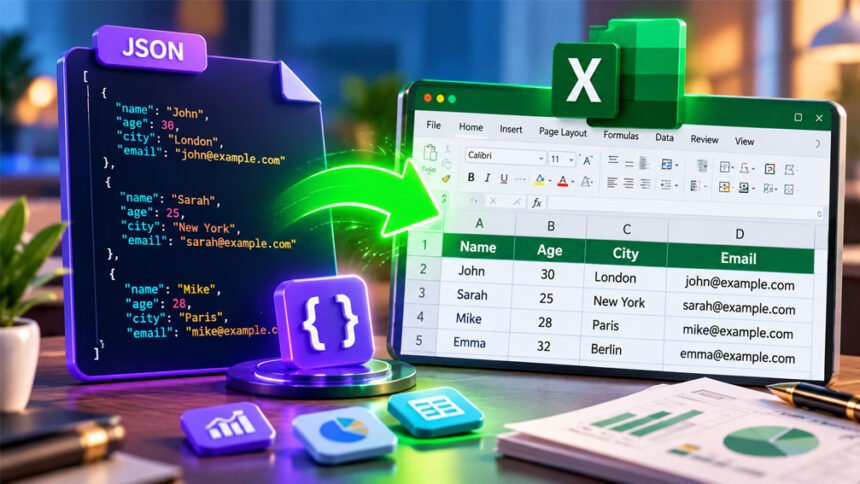
JSON is a common format used by websites, apps, and APIs to store and share data. It works well for computers, but large JSON files can be hard for people to read.
Converting JSON to Excel makes the data easier to understand. It puts the information into rows and columns, where you can sort, filter, calculate, and create reports.
This guide explains what JSON to Excel means, how to convert JSON files, and which method is best. It also covers nested JSON, common problems, privacy, and useful tips.
What Is JSON?
JSON stands for JavaScript Object Notation. It is a simple text format used to store and share structured data.
A basic JSON record may look like this:
{
  "name": "John",
  "age": 30,
  "city": "London"
}
Here, name, age, and city are keys. Each key has a value.
JSON can store text, numbers, true or false values, null values, objects, and arrays.
An object holds related information. An array holds a list of values or records.
JSON can also store data inside other data. This is called nested JSON. For example, a customer record may contain another object for their address.
JSON is often used by websites, APIs, apps, and software systems. Many APIs send their data in JSON format.
JSON has JavaScript in its name, but it is not only used with JavaScript. Many programming languages can read and create JSON files.
What Does JSON to Excel Mean?
JSON to Excel means changing JSON data into a spreadsheet format.
Simple JSON data can easily become rows and columns. JSON keys usually become column names, while individual records become rows.
For example:
[
  {
    "name": "John",
    "age": 30
  },
  {
    "name": "Sarah",
    "age": 25
  }
]
This data can look like this in Excel:
| name | age |
|---|---|
| John | 30 |
| Sarah | 25 |
The process becomes harder when JSON contains objects or arrays inside other objects.
Excel mainly uses rows and columns. JSON can have many levels of data. Because of this, complex JSON may need to be reorganized or flattened before it works well in Excel.
The final file is often saved as XLSX. JSON data can also be converted to CSV and other spreadsheet formats.
Why Convert JSON to Excel?
JSON is useful for developers and software, but spreadsheets are often easier for people to work with.
After converting JSON to Excel, you can easily read the information, search records, sort data, and apply filters.
Excel also lets you use formulas, calculations, tables, and charts.
People may convert JSON to Excel for:
- Analyzing API data.
- Creating reports.
- Sharing data with other people.
- Sorting and filtering records.
- Checking API responses.
- Moving data between systems.
- Creating charts.
- Cleaning and organizing data.
The best conversion method depends on your file. A simple file may only need an online converter. Complex, large, or private data may be better handled with Excel or Python.
How to Convert JSON to Excel
There are several ways to convert JSON to Excel. Three common methods are online converters, Microsoft Excel Power Query, and Python.
Using an Online JSON to Excel Converter
An online converter is one of the easiest choices for beginners. It works in a web browser and usually does not require extra software.
The basic steps are:
- Open a JSON to Excel converter.
- Upload your JSON file or paste the data.
- Choose the output format if needed.
- Click the convert button.
- Download the Excel file.
Some tools also support drag and drop or allow you to enter a JSON file URL.
Our research found tools such as Minifier.org and Aspose.Cells that offer online JSON conversion. Their exact features and limits can change over time.
Online converters are useful for small and simple files. They are quick and require little technical knowledge.
However, some websites may limit file size. Complex JSON may also need extra cleaning after conversion.
Privacy is another important point. Your JSON file may be uploaded to another company’s server. Avoid uploading private or sensitive data unless you understand how the service handles your files.
Using Microsoft Excel and Power Query
Supported versions of Microsoft Excel can import JSON using Power Query.
The usual steps are:
- Open Microsoft Excel.
- Go to Data.
- Select Get Data.
- Choose From File → From JSON.
- Select your JSON file.
- Check the data in Power Query.
- Expand or organize the data if needed.
- Select Close & Load.
The exact options may look slightly different depending on your Excel version.
Power Query is useful for nested JSON because you can expand records and lists into separate columns.
It also saves transformation steps. This can be useful if you regularly import similar JSON files.
Power Query takes more time to learn than an online converter. However, it gives you more control over how the final spreadsheet looks.
Converting JSON to Excel with Python
Python is useful for developers and people who need to convert JSON files regularly.
A popular option is pandas, a Python library used for working with data. Python’s json module can read JSON files, while openpyxl can help create and work with XLSX files.
For nested JSON, pandas.json_normalize() can help turn nested information into columns.
Here is a simple example:
import json
import pandas as pd

with open("data.json", "r", encoding="utf-8") as file:
    data = json.load(file)

df = pd.json_normalize(data)
df.to_excel("output.xlsx", index=False)
This code reads data.json and saves the converted data as output.xlsx.
Python gives you more control. You can remove fields, rename columns, clean values, combine data, and automate repeated conversions.
The main drawback is that you need some coding knowledge. Complex JSON may also require extra code.
How Nested JSON Is Converted to Excel
Nested JSON contains data inside other objects or arrays.
For example:
{
  "name": "John",
  "address": {
    "city": "London",
    "country": "UK"
  }
}
A converter may turn this into:
| name | address.city | address.country |
|---|---|---|
| John | London | UK |
This is called flattening. It changes nested data into simple rows and columns.
Arrays can be more difficult. For example, one customer may have several orders. Each order may also contain several products.
A converter may create several rows for the same customer. Another option is to place customers and orders on separate worksheets.
There is no perfect layout for every JSON file. The best structure depends on the data and how you want to use it.
Different tools may also convert nested JSON differently. Always check the final Excel file to make sure the information is correct.
Online Converter vs Excel vs Python
Each method is useful for a different type of task.
| Method | Best For | Main Benefit | Main Limitation |
|---|---|---|---|
| Online converter | Small and quick tasks | Very easy | May upload data to another server |
| Excel Power Query | Excel users | More control | Nested data needs extra work |
| Python | Automation and complex tasks | Very flexible | Coding knowledge needed |
An online converter is a good choice for small, simple, and non-private files.
Excel Power Query is useful when you need to clean, expand, or organize data before adding it to a spreadsheet.
Python is better for automation and custom conversions.
File size also matters. Online tools may have upload limits, and Excel has worksheet limits. Very large datasets may need Python, a database, or another data tool.
Benefits of Converting JSON to Excel
JSON to Excel conversion makes technical data easier to read.
Once the data is in Excel, you can sort records, use filters, compare values, and search for specific information.
You can also use formulas and calculations. Charts and tables can help turn the data into useful reports.
Excel files are also easier to share with people who do not normally work with JSON.
This makes JSON to Excel useful for developers, analysts, businesses, researchers, students, and other users who need to understand structured data.
Limitations of JSON to Excel Conversion
JSON and Excel store information differently.
JSON can contain several levels of objects and arrays. Excel mainly uses simple rows and columns.
Because of this, complex JSON may need to be flattened before it can be used in Excel.
Arrays may also create repeated rows. For example, one customer with three orders may appear in three different rows.
JSON files can also have missing fields. One record may contain information that another record does not. This can create empty cells in Excel.
Excel also has size limits. A modern Excel worksheet supports up to 1,048,576 rows and 16,384 columns.
Very large files may also become slow even before they reach these limits.
For very large datasets, Python, databases, or other data tools may be better choices.
Data Types and Formatting Problems
Some values may change when JSON is converted to Excel.
For example, Excel may treat a number as a real number even when it is actually an ID.
A code such as 00125 could become 125. This removes the leading zeros.
Very long numbers can also cause problems. Excel keeps up to 15 significant digits for numeric values. Long IDs should usually be stored as text if every digit is important.
Dates and times should also be checked after conversion. Excel may change how they are displayed or understood.
Other values to check include:
trueandfalse.nullvalues.- Empty fields.
- Missing information.
- Decimal numbers.
- Special characters.
Always compare important data with the original JSON file after conversion.
Is It Safe to Convert JSON to Excel Online?
JSON to Excel conversion itself is generally safe. The main concern is what happens to your data when you use an online converter.
JSON files can contain private information such as customer details, email addresses, business data, API responses, or access tokens.
Before uploading private data, check the website’s privacy policy. Find out whether it stores uploaded files and how long those files are kept.
A tool is not automatically private just because it does not ask you to create an account.
Remove passwords, API keys, access tokens, and other private information before uploading JSON when possible.
For sensitive data, using Excel or Python locally can be safer because you do not need to upload the file to a public conversion website.
Also keep a copy of the original JSON file in case something changes during conversion.
Tips for Clean and Accurate Conversion
A few simple steps can help you get better results:
- Check your JSON first. Fix any JSON errors before conversion.
- Keep records consistent. Similar records are easier to turn into a clean table.
- Remove unnecessary fields. This makes the final spreadsheet cleaner.
- Plan nested data. Decide whether it should become columns, rows, or separate sheets.
- Test a small sample. Try a small amount of data before converting a large file.
- Keep the original file. Never remove your only copy of the JSON.
- Check the number of records. Make sure information was not lost.
- Check important values. Look closely at IDs, dates, numbers, and missing values.
- Check repeated rows. Some repeated information may come from nested arrays.
- Use clear column names. Rename confusing columns when needed.
Always check the finished Excel file before using it for important reports or calculations.
Common JSON to Excel Problems and Fixes
JSON File Will Not Import
Invalid JSON is a common reason a file will not import.
Missing commas, quotation marks, brackets, or braces can stop a tool from reading the file.
Use a JSON validator or code editor to find and fix these errors.
File encoding can sometimes cause problems too. UTF-8 is commonly used for JSON and works well with international text.
JSON Data Appears in One Column
Sometimes JSON data is imported without being separated into useful columns.
In Power Query, you may need to expand records and lists manually.
With Python, tools such as pandas.json_normalize() can flatten nested information before saving it to Excel.
Nested Data Does Not Display Correctly
Nested objects and arrays can be difficult to fit into one spreadsheet.
Objects can often be expanded into columns. Arrays may need several rows or a separate worksheet.
Choose the structure based on what the data means and how you plan to use it.
Missing or Incorrect Values
Missing information may come from null values, missing keys, or problems during conversion.
Check the original JSON first. Then check whether Excel changed the data type or format.
Always compare important information with the source file.
Duplicate Rows After Conversion
Repeated rows can appear when arrays are expanded.
For example, one customer with three orders may appear three times, with one row for each order.
These may not be real duplicates. Check the original JSON before deleting repeated rows.
Large JSON Files Are Slow
Large JSON files can take longer to process.
Online converters may also have file-size or processing limits.
Removing unnecessary fields can help. You can also split suitable datasets into smaller parts.
For very large or repeated jobs, Python or another data tool may work better. If the data is too large for Excel, consider using a database.
JSON to Excel Alternatives
Excel is not always the best format for JSON data. There are several other options.
JSON to CSV
CSV is a simple text format for rows and columns.
It works with Excel, databases, and many other programs. It can be a good choice when your JSON data has a simple structure.
However, CSV does not support multiple sheets, charts, formulas, or advanced formatting.
Nested JSON must also be flattened before it works well as CSV.
Google Sheets
JSON data can also be moved into Google Sheets using scripts, add-ons, APIs, or another conversion method.
Google Sheets is useful when several people need to work on the same spreadsheet online. It supports formulas, charts, filters, and sharing.
Complex JSON may still need to be flattened before it becomes a clean table.
Databases
A database may be better for very large datasets.
Databases can store and search large amounts of information without showing everything in one spreadsheet.
Some databases can also work directly with JSON data.
Databases require more technical knowledge, but they are useful for apps, large datasets, and information that changes often.
Data Analysis Tools
Data analysis tools can work with JSON without first converting everything to Excel.
Python, for example, can read JSON, clean the data, filter records, combine files, and export only the results you need.
This can be useful for large files, automation, and complex data.
Excel is still a good choice when you need a familiar spreadsheet for reports, formulas, charts, or manual review.
Bottom Line
JSON to Excel conversion makes JSON data easier to read, analyze, and share.
Online converters are useful for quick and simple jobs. Excel Power Query gives you more control over the data. Python is useful for automation and more complex conversions.
Nested objects and arrays are usually the biggest challenge. Always check the final spreadsheet to make sure your data was converted correctly.
Also check important values such as IDs, dates, long numbers, and missing information. For private JSON files, think carefully before uploading data to an online service.
Frequently Asked Questions
What is JSON to Excel conversion?
It changes JSON data into an Excel spreadsheet with easy-to-read rows and columns.
Can Excel open a JSON file?
Yes. Excel can import JSON files using Power Query in supported versions.
Can I convert JSON to Excel for free?
Yes. Many free online tools can convert JSON files to Excel.
How do I convert nested JSON to Excel?
You need to flatten the nested data into simple rows and columns.
Can I convert JSON to Excel without installing software?
Yes. You can use an online JSON to Excel converter in your web browser.
Is it safe to upload JSON to an online converter?
It can be safe, but check the website’s privacy policy before uploading private or sensitive data.
Why does my JSON look different after conversion?
JSON can have nested data, while Excel uses rows and columns. The structure may change during conversion.
What is the best way to convert a large JSON file to Excel?
Excel Power Query or Python can work better for large files. Very large data may be better stored in a database.
More To Explore:
Cheap Dedicated Server Hosting: A Beginner’s Guide to Costs and Features