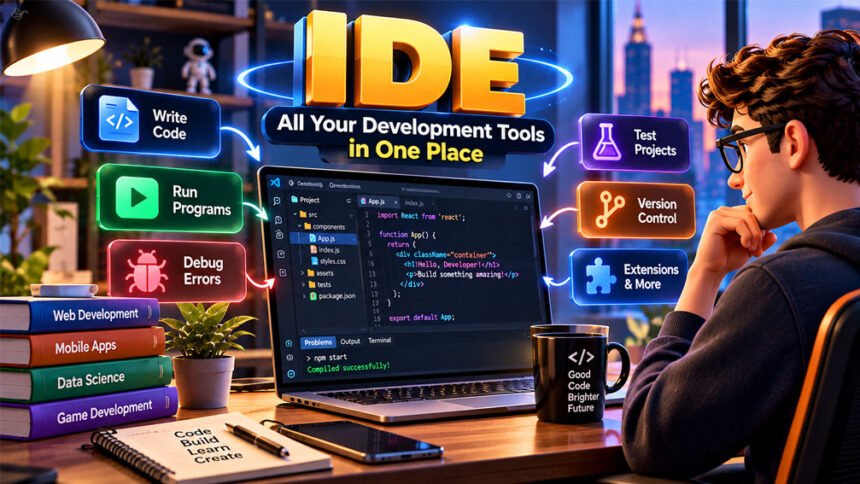
An IDE is a program that helps developers write, run, test, and fix code. IDE stands for Integrated Development Environment. It puts many coding tools in one place.
IDEs are used to create websites, mobile apps, desktop programs, games, and other software. This guide explains what an IDE is, how it works, its main features, its types, and how to choose the right one.
What Is an IDE?
An Integrated Development Environment (IDE) is software that gives developers many coding tools in one place.
A developer can use an IDE to write code, organize files, run programs, test software, and find errors.
Without an IDE, a programmer may need different programs for different jobs. For example, they may use one program to write code and another to compile or debug it. An IDE brings these tools together.
Most IDEs have a graphical interface with menus, buttons, project files, an editor, and output windows.
A typical IDE includes a code editor, debugger, and build tools. It may also work with a compiler or interpreter.
Some IDEs are made for certain programming languages or platforms. For example, PyCharm mainly focuses on Python, Android Studio is made for Android development, and Xcode is used for Apple platforms.
How Does an IDE Work?
An IDE gives developers one place to handle different parts of software development.
First, a developer creates a new project or opens an existing one. The IDE shows the files, folders, libraries, and other parts of the project.
The developer then writes code in the built-in editor. The IDE may highlight the code, suggest words or functions, and show simple errors while the developer is typing.
The next step depends on the programming language. Some languages need a compiler. Others use an interpreter or another runtime. The IDE connects these tools to the project.
Most IDEs have simple Run, Build, and Debug options. Developers can use these instead of typing every command manually.
If the program has a problem, the debugger can help find it. Developers can pause the program, check values, and go through the code step by step.
An IDE may also help with testing, Git, building the final program, and preparing software for release.
Main Features of an IDE
Different IDEs offer different features. However, most modern IDEs include several common development tools.
Source Code Editor
The source code editor is where developers write and edit code.
It often includes syntax highlighting, which makes different parts of the code easier to see. It may also provide automatic indentation, formatting, search and replace, and file navigation.
Code Completion and Suggestions
Code completion suggests code while the developer is typing.
It may suggest functions, variables, classes, methods, and keywords. This can save time and reduce simple typing mistakes.
Microsoft’s IntelliSense is one example of this type of feature.
Compiler and Interpreter
A compiler changes source code into a form that a computer or another system can run.
An interpreter processes and runs code in a different way. Which one is needed depends on the programming language.
An IDE may include these tools or connect to tools installed separately.
Debugger
A debugger helps developers find problems in their programs.
Developers can add breakpoints to pause a program at a certain line. They can then check variables and move through the code one step at a time.
This makes it easier to understand why a program is not working correctly.
Build Automation
Building a program can involve many files and steps.
Build tools can handle many of these tasks automatically. The IDE may provide a simple button or command for starting the build.
This saves developers from doing the same tasks manually each time.
Testing Tools
Testing tools help developers check whether their software works correctly.
Many IDEs can run tests and show the results inside the same program. Failed tests can help developers find parts of the code that need to be fixed.
Integrated Terminal
Many IDEs include a terminal.
Developers can use it to run commands, scripts, Git, package managers, servers, and other development tools without opening another application.
Version Control
Many developers use Git to track changes to their code.
An IDE may provide tools for viewing changes, creating commits, working with branches, and pushing or pulling code.
This is especially useful when several people are working on the same project.
Code Navigation and Refactoring
Code navigation helps developers move around large projects.
They can quickly find files, functions, classes, definitions, and places where a piece of code is being used.
Refactoring tools help developers improve or reorganize existing code. For example, an IDE can rename a variable and update its name throughout the project.
Plugins and Extensions
Plugins and extensions add new features to an IDE.
They can add support for programming languages, frameworks, testing tools, databases, themes, and other development tools.
Extensions can also turn a simple code editor into a more complete development environment.
Other Advanced Features
Some IDEs include extra tools for larger or more complex projects.
These may include code profiling, database tools, visual interface designers, code analysis, templates, resource monitoring, remote development, and deployment tools.
Not every developer needs all of these features.
IDE vs. Code Editor
An IDE and a code editor are similar, but they are not exactly the same.
A code editor mainly helps developers write and edit code. It may include syntax highlighting, autocomplete, formatting, search, and file navigation.
An IDE normally includes more development tools. These may include debugging, building, testing, project management, and compiler or interpreter support.
The difference is not always clear today. Modern code editors can use extensions to add many IDE features.
For example, Visual Studio Code is mainly a code editor. Extensions can add many extra development features. Visual Studio is a full IDE and is a different product.
A code editor may be enough for simple work. A full IDE can be better for larger projects that need advanced tools.
Types of IDEs
There are different types of IDEs. The right type depends on what the developer wants to build.
Desktop or Local IDEs
Desktop IDEs are installed directly on a computer.
Examples include Visual Studio, IntelliJ IDEA, Eclipse, PyCharm, and Android Studio.
They give developers control over local files and tools. Many tasks can also work without a constant internet connection.
However, large IDEs may use a lot of RAM, CPU power, and storage.
Cloud IDEs
Cloud IDEs work through a web browser or remote computer.
Code and development tools may run on remote servers instead of using only the developer’s computer.
This can reduce local setup and make it easier for teams to use similar development environments.
A good internet connection may be important when using a cloud IDE.
Language-Specific IDEs
Some IDEs focus on a certain programming language or platform.
For example, PyCharm focuses mainly on Python. IntelliJ IDEA is popular for Java and Kotlin. Xcode focuses on Apple’s development platforms.
These IDEs often provide special tools for their main languages.
General-Purpose IDEs and Development Environments
General-purpose development environments can support several programming languages.
Some include this support by default. Others allow developers to add more languages through plugins and extensions.
This can be useful for people who work with different programming languages.
Mobile Development IDEs
Mobile development IDEs are made for creating mobile apps.
Android Studio is Google’s official IDE for Android development. It includes an emulator that lets developers test apps on virtual Android devices.
Xcode provides tools for developing and testing apps for Apple platforms such as iOS.
Lightweight Development Environments
Some developers prefer smaller and faster coding tools.
Lightweight editors usually open faster and use fewer computer resources. They can be useful for small projects, quick changes, and computers with limited hardware.
Plugins can add more features when needed. However, developers may need to set up more tools themselves.
What Is an IDE Used For?
IDEs are used for many types of software development.
Web developers can use them to work with HTML, CSS, JavaScript, TypeScript, backend languages, frameworks, databases, and servers.
Mobile developers use IDEs to write apps, design interfaces, find errors, and test applications.
IDEs are also used for desktop software, games, backend services, command-line programs, utilities, and other software.
Some development environments are made for data science and statistics. They can combine coding with data analysis, charts, and reports.
IDEs can also help developers create and run automated tests.
Both beginners and professional developers use IDEs. Beginners may like having important tools in one place. Professional developers can use advanced tools to manage large and complex projects.
Popular IDEs and Development Environments
There are many IDEs and coding environments available. Each one has different strengths.
Visual Studio
Visual Studio is Microsoft’s full development environment. It is commonly used for .NET development.
It includes IntelliSense, debugging, testing, profiling, refactoring, and project management tools. It also supports version control and extensions.
Visual Studio Code
Visual Studio Code, or VS Code, is a code editor from Microsoft. It works on Windows, macOS, and Linux.
It includes syntax highlighting, IntelliSense, debugging support, Git tools, and an integrated terminal.
Developers can install extensions to add support for more languages and tools. This can make VS Code work like an IDE for many projects.
IntelliJ IDEA
IntelliJ IDEA is developed by JetBrains. It is especially popular for Java and Kotlin development.
It provides code completion, debugging, testing, code analysis, navigation, and refactoring.
It also works with version control, databases, frameworks, build tools, and plugins.
PyCharm
PyCharm is a JetBrains IDE mainly made for Python.
It includes code completion, debugging, testing, refactoring, and code analysis. It also supports popular Python web frameworks such as Django and Flask.
Android Studio
Android Studio is Google’s official IDE for Android development.
It includes coding, debugging, profiling, visual design, build tools, and an Android emulator.
The emulator lets developers test apps on virtual Android devices.
Xcode
Xcode is Apple’s development environment.
It is used to create apps for Apple platforms such as iOS and macOS. It includes coding, debugging, testing, interface design, and device simulators.
Xcode runs on macOS.
Apache NetBeans
Apache NetBeans is an open-source IDE. It is commonly used for Java but can also support other languages and web technologies.
It includes code editing, debugging, refactoring, project management, and version control tools.
Eclipse
Eclipse is an open-source development platform. It is especially well known for Java development.
Its large plugin system allows developers to add languages, testing tools, frameworks, and other features.
WebStorm
WebStorm is a JetBrains IDE for web development.
It focuses on JavaScript and TypeScript. It also works with Node.js and popular web frameworks.
It includes debugging, code completion, navigation, refactoring, and error checking.
IDLE
IDLE is Python’s Integrated Development and Learning Environment.
It includes a Python shell, code editor, syntax colors, autocomplete, search tools, and a debugger.
Its simple design can be useful for people who are learning Python.
Specialized Environments
Some development environments focus on special types of work.
RStudio is mainly used for R, statistics, data analysis, visualization, and reporting.
Selenium IDE focuses on browser testing. It can record and replay browser actions to help create automated tests.
Benefits of Using an IDE
An IDE can make software development easier and faster.
Developers can use several tools without constantly switching between different programs.
Autocomplete, syntax highlighting, and error checking can help developers write code faster and notice simple problems.
Debugging tools make it easier to understand why a program is not working correctly.
IDEs also help organize large projects. Developers can search files, move around the code, run tests, manage Git changes, and refactor code from one place.
For beginners, having these tools together can make the development process easier to follow.
Drawbacks of IDEs
Large IDEs can use a lot of RAM, CPU power, and storage. They may run slowly on older computers.
Some IDEs also have many menus, buttons, and settings. This can be confusing for beginners.
Setup can sometimes take time. Developers may still need to install an SDK, compiler, interpreter, runtime, or other tools.
Plugins can also cause problems. Old or broken extensions may slow down the IDE or create errors.
Some IDEs are free, while others require payment for professional features.
An IDE can also hide some technical steps. Developers should still learn basic commands and understand how their programming tools work.
Free vs. Paid IDEs
Some IDEs are completely free. Others have both free and paid versions.
A free version may be enough for students, beginners, and many personal projects. Paid versions may include extra tools for professional or business development.
Companies should check the license before using an IDE for commercial work. Personal, educational, and business use may have different rules.
Prices and license terms can change, so always check the official website for current information.
IDE System Requirements and Compatibility
System requirements are different for each IDE.
Some IDEs work on Windows, macOS, and Linux. Others are limited to certain operating systems. For example, Xcode runs on macOS.
Large IDEs may need more RAM and processing power. Extra tools such as mobile emulators can use even more resources.
Developers should also consider storage. SDKs, libraries, project files, virtual devices, and other tools can take up extra space.
Some IDEs also need a compiler, interpreter, JDK, SDK, or runtime to be installed.
Cloud IDEs are different because much of the work happens on remote computers. A reliable internet connection and supported browser can be important.
Check the official system requirements before installing an IDE.
How to Choose the Right IDE
Start by checking which programming language you want to use.
Next, think about your project. A Python program, Android app, website, and .NET application may all need different tools.
Check whether the IDE supports your operating system and whether your computer is powerful enough to run it smoothly.
Look at the features you actually need. These may include debugging, testing, code completion, Git, framework support, databases, plugins, and deployment tools.
Teams may also need collaboration tools, remote development, version control, and CI/CD support.
Price is another factor. A free IDE may provide everything you need, while some professional projects may benefit from paid tools.
Do not choose an IDE only because it is popular. Choose one that works well with your language, project, computer, and budget.
Best IDE for Different Uses
There is no single best IDE for everyone.
For Python, PyCharm is a popular full IDE. IDLE is a simpler option for basic Python learning.
For Java, common options include IntelliJ IDEA, Eclipse, and Apache NetBeans.
For Kotlin, IntelliJ IDEA provides strong support. Android developers commonly use Android Studio.
For Android development, Android Studio is Google’s official IDE.
For Apple app development, Xcode provides Apple’s official development tools.
For JavaScript and web development, WebStorm is a full IDE option. VS Code is a lighter and highly customizable choice.
For .NET development, Visual Studio provides Microsoft’s full development tools.
For R and statistical work, RStudio provides tools for coding, data analysis, charts, and reports.
The best choice depends on the project and the developer’s needs.
Tips for Beginners Using an IDE
Beginners do not need to learn every feature at once.
Start with the basic tools and learn more as you need them.
- Learn how Run, Build, and Debug work.
- Read error messages carefully.
- Learn how to use breakpoints.
- Learn a few useful keyboard shortcuts.
- Keep project files organized.
- Learn basic Git.
- Install only the plugins you need.
- Keep important tools and plugins updated.
- Learn some basic terminal commands.
- Understand which compiler, interpreter, runtime, or SDK your project uses.
- Use official documentation when you need help.
An IDE should make programming easier, but it cannot replace learning how programming works.
Common IDE Problems and Fixes
The IDE Is Slow
Large projects, too many plugins, and background tasks can slow down an IDE.
Close programs you are not using and remove unnecessary plugins. Also check whether your computer has enough RAM and free storage.
Code Does Not Run
The required compiler, interpreter, runtime, or SDK may be missing.
Check that the correct development tools are installed and that your IDE is using the right version.
Autocomplete Is Not Working
The required language support or extension may be missing or disabled.
Check your extensions and project settings. The IDE may also need time to finish reading and indexing the project files.
The Debugger Does Not Start
The debugger may not be set up correctly.
Check the project’s debug settings, runtime, and selected program. Make sure the program can run normally before debugging it.
The IDE Cannot Find a Library
The library may not be installed or the IDE may be looking in the wrong place.
Check the project’s dependencies, package manager, environment, and library paths.
A Plugin Causes Problems
An old or incompatible plugin can cause errors.
Try updating the plugin. If that does not work, disable or remove it and restart the IDE.
The Project Works on One Computer but Not Another
The computers may have different software versions, libraries, settings, or environment variables.
Compare the development setup on both computers. Make sure they use the same important dependencies and runtime versions.
Bottom Line
An IDE brings useful programming tools into one place. It can help developers write, run, test, debug, and manage code.
A full IDE is not needed for every project. A simple code editor may be enough for smaller tasks.
Choose an IDE based on your programming language, project, operating system, computer, needed features, and budget.
Frequently Asked Questions
What does IDE stand for?
IDE stands for Integrated Development Environment. It is a program that gives you coding tools in one place.
What is an IDE used for?
An IDE helps you write, run, test, and fix code. It also helps manage coding projects.
What is the difference between an IDE and a code editor?
A code editor is mainly for writing code. An IDE also includes tools for testing, debugging, and building programs.
Is Visual Studio Code an IDE?
VS Code is mainly a code editor. You can add extensions to give it many IDE-like features.
Do beginners need an IDE?
No, but an IDE can make coding easier for beginners. It keeps many useful tools in one place.
Are IDEs free?
Some IDEs are free, while others have paid plans. It depends on the IDE you choose.
Which IDE is best for beginners?
It depends on the programming language. For example, IDLE is a simple choice for beginners learning Python.
Can I program without an IDE?
Yes. You can use a code editor and separate tools to run, test, and debug your code.
More To Explore:
VirtualBox Extension Pack: What It Is, Features, and How to Install It