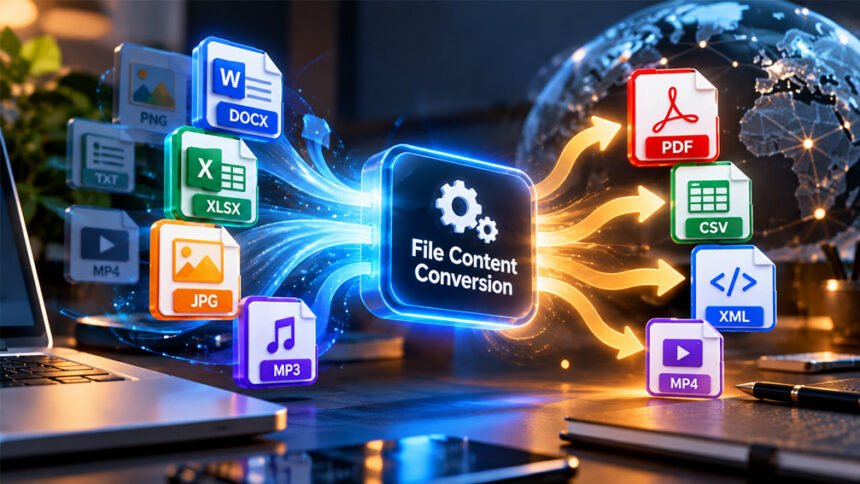
File content conversion means changing a file from one format to another. For example, you can change a Word document into a PDF or an Excel file into CSV.
It helps people share files between different apps, devices, and computer systems. This guide explains file formats, conversion methods, benefits, common problems, and SAP File Content Conversion.
What Is File Content Conversion?
File content conversion is the process of changing a file into another format so different applications can use it.
For example, you can convert a Word document into PDF to share it easily. A developer can also change JSON data into XML when another system needs that format.
Changing a file’s name does not change its format. For example, renaming report.docx to report.pdf does not turn it into a real PDF file. You need a conversion tool to change the file correctly.
File conversion works with documents, spreadsheets, images, audio, videos, and data files. Some conversions keep most of the original content, while others may change the layout or remove certain features.
In business systems, file conversion helps different applications share information. For example, one system may create a text file while another system needs XML.
SAP also has a feature called File Content Conversion (FCC) in SAP Process Integration (PI) and Process Orchestration (PO). It converts structured text files into XML messages and XML messages into text files. This is a specific use of file conversion.
How Does File Content Conversion Work?
File content conversion usually has three main steps.
-
Read the original file: The tool reads the file’s content and structure.
-
Convert the content: It changes the information into the required format.
-
Create the new file: The tool saves the converted content in a new file or sends it to another system.
For example, a CSV file may contain this information:
Name,Age
Ali,25
Sara,30
The same information can be converted into XML:
<people>
  <person>
    <name>Ali</name>
    <age>25</age>
  </person>
  <person>
    <name>Sara</name>
    <age>30</age>
  </person>
</people>
Both files contain the same basic information, but they use different formats.
The final result depends on the conversion tool and its settings. Some conversions may change formatting, remove formulas, reduce image quality, or lose other details. Always check the new file after conversion.
Common File Formats Used in Content Conversion
Different file formats serve different purposes. The best format depends on how you plan to use the file.
Document Formats
Common document formats include DOCX, PDF, TXT, and HTML.
-
DOCX: Used for editable Word documents.
-
PDF: Helps keep a document’s layout consistent when sharing it.
-
TXT: Stores plain text without most formatting.
-
HTML: Organizes content for display in web browsers.
For example, you can convert DOCX to PDF when sharing a finished report. You can convert HTML to TXT when you only need the written content.
However, converting a document may change its fonts, images, links, or page layout. TXT files cannot keep most of the original formatting.
Spreadsheet and Data Formats
Common spreadsheet and data formats include XLSX, CSV, JSON, and XML.
-
XLSX: Stores spreadsheet data, formulas, formatting, and other workbook features.
-
CSV: Stores table data as text, usually separated by commas.
-
JSON: Organizes data into objects and lists.
-
XML: Organizes data using named tags and a clear structure.
For example, you can convert Excel data into CSV to import it into another application. JSON can also be converted into XML when a system requires XML.
These formats work differently. CSV usually cannot keep Excel formulas, cell formatting, or multiple worksheets. JSON and XML can store more complex data, but the conversion must follow the correct rules.
Image, Audio, and Video Formats
Media files may need conversion when an app or device does not support the original format.
Common image formats include PNG, JPEG, and WebP. PNG supports transparency, JPEG is widely used for photographs, and WebP can help reduce image file sizes.
Common audio formats include MP3 and WAV. MP3 uses compression to reduce file size, while WAV often stores audio with little or no compression.
Common video formats include MP4 and WebM. The format and codecs used affect compatibility, quality, and file size.
Converting media can make it easier to upload, share, or play files. However, some conversions reduce quality or remove features such as image transparency.
Main Methods of File Content Conversion
You can convert files in several ways. The right method depends on the file type, size, privacy needs, and how often you need to convert files.
Online File Converters
Online converters work through a web browser. You upload a file, choose the output format, and download the converted file.
They are easy to use and usually do not require software installation. Many support common formats such as PDF, DOCX, CSV, and image files.
However, file-size limits and available features vary between services. Some websites also upload files to their own servers.
Avoid uploading private documents or confidential business files to unknown websites. Check the service’s privacy policy before using it.
Desktop Software
Desktop software runs on your computer and can convert files locally, depending on the application.
Examples include office programs, image editors, audio tools, and video editors. Many have options such as Save As or Export for changing file formats.
Desktop software may offer more control over file quality, layout, and other settings. Some tools also work without an internet connection.
However, certain programs require payment, and not every program supports every file format.
Built-In Application Tools
Many applications have their own file conversion features.
For example, Microsoft Word can save supported documents as PDF. Excel can export worksheet data as CSV, and image editors can save pictures as PNG or JPEG.
These built-in tools are useful because you can convert files without installing another program.
Remember that the output format may not support every feature of the original file. Saving an Excel workbook as CSV, for example, removes many workbook features.
Programming and Automated Conversion
Developers can use code and software libraries to convert files automatically. This is useful when many files need to be processed or the same task must be repeated.
For example, a script can convert hundreds of CSV files into JSON. It can also help move data between applications.
Automation saves time and reduces repeated manual work. However, scripts must be tested because unusual data, missing fields, or unsupported formats can cause errors.
SAP File Content Conversion (FCC)
SAP File Content Conversion is a special feature in SAP Process Integration (PI) and Process Orchestration (PO).
It converts structured text files into XML messages and XML messages into structured text files. This helps different business systems exchange information.
For example, one system may create a text file containing customer or transaction records. SAP FCC can convert that file into XML for another connected system.
The reverse process is also possible when a system needs a text file instead of XML.
Correct setup is important. The configuration may include field names, separators, record structures, and other file details. Incorrect settings can lead to missing or wrongly arranged data.
The available options depend on the SAP product and its configuration.
Benefits of File Content Conversion
File conversion makes information easier to use, share, and process.
Better Compatibility
Different applications support different file formats. Converting a file into a supported format makes it easier to open and use.
For example, a PDF can help people view a report without needing the original Word application.
Easier File Sharing
Some formats are better for sharing than others. PDF helps preserve document layout, while CSV makes table data easier to import into many applications.
Choosing the right format makes sharing files with colleagues, customers, and students easier.
Smaller File Sizes
Some conversion tools can reduce file sizes. Converting a large image into a compressed format may make it faster to upload or send.
However, compression can reduce quality. The result depends on the format and settings.
Better Data Exchange
Businesses often use different software systems. File conversion helps these systems exchange information in a format they can understand.
For example, converting JSON into XML can help a system that requires XML process the data. SAP FCC can also connect systems that use structured text files and XML messages.
Saves Time
Conversion tools reduce the need to enter information manually. Batch conversion and automated scripts are especially useful when handling many files.
This helps people complete repeated tasks faster and reduces manual work.
Limitations of File Content Conversion
File conversion does not always produce a perfect copy of the original file.
Some formats cannot keep every feature of another format. For example, converting a Word document to plain text removes most of its formatting.
Common limitations include:
-
Lost formatting: Fonts, tables, and page layouts may change.
-
Reduced quality: Compressed images, audio, and videos may lose detail.
-
Missing features: Formulas, links, or animations may not transfer.
-
Compatibility issues: Some tools cannot open damaged or unusual files.
-
File-size limits: Online tools may limit the size or number of files.
-
Conversion errors: Wrong settings may change how data is arranged.
Choose a suitable output format and check the converted file before using or sharing it.
Is File Content Conversion Safe?
File conversion can be safe when you use trusted tools and follow basic security steps. The level of risk depends on the file and the conversion service.
Online converters may send your files to remote servers. This can create privacy risks if your documents contain private or business information.
Desktop tools may process files directly on your computer, depending on the software. This can be useful for sensitive files, but you should still download software from trusted sources.
To stay safe:
-
Use trusted conversion tools.
-
Avoid uploading private files to unknown websites.
-
Keep your software updated.
-
Scan downloaded files when needed.
-
Check converted files before sharing them.
-
Keep a backup of important originals.
Converting a file does not automatically make it safe. Files from unknown sources may still contain harmful content or unsafe links.
Privacy and Data Protection
Privacy is important when converting files that contain personal or business information.
Some online services store uploaded files temporarily or process them on their servers. Check the privacy policy to learn how your files are handled.
For sensitive documents, consider an offline tool that processes files on your device. Confirm that it does not upload your files in the background.
Businesses should follow their data protection rules when converting customer records, financial documents, employee details, or confidential reports.
Before using an online converter, check whether files are stored, shared with other providers, and how long they remain available. Do not assume files are deleted immediately unless the service clearly states this.
How to Choose the Right File Conversion Tool
The best file converter depends on the task and how you plan to use the result.
Consider these points:
-
Supported formats: Check that the tool supports both the original and required formats.
-
File size: Make sure it can handle your documents, videos, or data files.
-
Output quality: Look for settings that help preserve layout, image quality, and data structure.
-
Privacy: Choose a tool that suits the sensitivity of your files.
-
Cost: Check whether the features you need are free or paid.
-
Batch conversion: Look for this feature if you need to convert many files.
-
Ease of use: Choose a simple tool for occasional tasks or a more advanced option for regular work.
For business systems, also check support for data structures, character encoding, field separators, and error handling.
Common File Conversion Problems and Solutions
The Converted File Will Not Open
The conversion may have failed, or the file may not be in the format its extension suggests.
Try converting the original file again with a trusted tool. Select the correct output format and open it with a compatible application.
Formatting Changes After Conversion
Fonts, tables, images, and page breaks may look different after conversion.
Use a tool designed for the original file type. Check the settings and review the output. If you need to preserve a document’s layout, PDF may be a good choice.
Data Is Missing From the Converted File
Some formats cannot store all the features of the original file. For example, CSV does not keep all Excel workbook features.
Check whether the output format supports the information you need. If you must keep formulas, formatting, and multiple worksheets, use XLSX instead of CSV.
Special Characters Appear Incorrectly
Names and symbols may display incorrectly when files use different character encodings.
Try a tool that supports UTF-8 or the encoding your data requires. When importing CSV files, also check the character encoding and separator settings.
The Conversion Takes Too Long
Large files and complex media can take longer to convert.
Close unnecessary applications and check your device’s available memory. Try a smaller file to identify the problem. For repeated tasks, desktop software or automated tools may work better than a basic online converter.
SAP File Content Conversion Produces Incorrect Data
In SAP PI or PO, incorrect output may result from wrong conversion settings.
Check the field separators, record structure, field names, and expected XML format. Compare the result with a correct example and review the system logs.
If the problem continues, ask the SAP integration administrator to check the configuration.
Tips for Better File Conversion Results
Follow these steps to reduce errors and protect your files.
-
Keep the original file. Save a copy before conversion.
-
Choose the right format. Decide whether you need editable text, a fixed layout, structured data, or smaller media files.
-
Check the settings. Review image quality, text encoding, and separators.
-
Test a small file first. This is useful before converting many files.
-
Check the output. Make sure the information is complete and readable.
-
Use trusted software. Avoid unknown tools for private or important files.
-
Keep backups. Protect important files before batch conversion or changes to business data.
These steps help with both everyday file conversion and larger business tasks.
Alternatives to File Conversion
Sometimes you can use a file without converting it. Other tools may also help you share information directly.
Use the Original Application
Opening a file in the application that created it can preserve features that might be lost during conversion.
For example, use Excel to edit an XLSX file when you need its formulas, charts, and multiple worksheets.
Use a Multi-Format Viewer
Some applications can open several file formats without converting them first.
This is useful when you only need to read or review a file. However, a viewer may not support editing or every feature of the original format.
Use an API or Direct Integration
Businesses and developers can connect applications through an API instead of exchanging converted files.
An API lets systems send and receive information using agreed rules. It can reduce manual file handling, but both systems must support a suitable connection.
Use ETL Tools for Business Data
ETL stands for extract, transform, and load. These tools take data from one source, change it, and load it into another system.
They are useful when businesses need to move large amounts of information between databases, applications, and reporting systems. They can also clean and reorganize data during the process.
Who Can Benefit From File Content Conversion?
File content conversion is useful for many people and organizations.
-
Students and teachers can convert assignments, notes, and study materials.
-
Office workers can prepare reports, spreadsheets, and presentations for sharing.
-
Developers can convert JSON, XML, CSV, and other data formats.
-
Designers and media creators can prepare images, audio, and videos for editing or publishing.
-
Businesses can exchange information between applications.
-
IT and SAP professionals can connect systems that use different file formats.
The best method depends on the file type, the user’s needs, and how the converted content will be used.
Bottom Line
File content conversion changes a file from one format into another so different applications can use it.
Common examples include converting Word documents to PDF, spreadsheets to CSV, and JSON to XML. You can use online tools, desktop software, built-in application features, or automated scripts.
In business systems, SAP File Content Conversion helps exchange structured text files and XML messages. Correct settings are important to avoid missing or wrongly arranged data.
Choose the right format, protect private information, and keep a copy of the original file. Always check the converted file before using or sharing it.
Frequently Asked Questions
What is file content conversion?
It means changing a file from one format to another, such as Word to PDF or JSON to XML.
Why is file conversion useful?
It helps files work with different apps and devices and makes sharing information easier.
Is online file conversion safe?
Yes, if you use a trusted website. Avoid uploading private files to unknown services.
Can file conversion reduce quality?
Yes, it may change the layout, remove features, or reduce image and audio quality.
What is SAP File Content Conversion?
It is an SAP feature that changes text files into XML and XML into text files.
Can I convert files without installing software?
Yes, you can use online converters or tools built into apps.
What is the best format for sharing documents?
PDF helps keep the layout, while DOCX is better for editing.
How can I avoid losing data during conversion?
Keep the original file, use a trusted tool, choose the right format, and check the converted file.
More To Explore:
HCOOCH CH2 H2O Reaction: Formula, Products, and How It Works