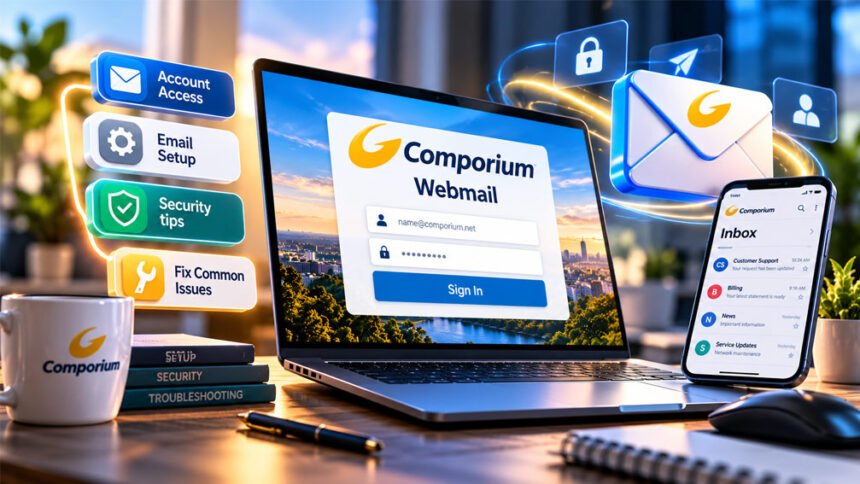
Comporium Webmail is an online email service for people who already have an @comporium.net email address. You can use it in a web browser to read, send, and manage emails.
People often search for Comporium Webmail when they need help with login, email setup, passwords, or email problems. This guide explains how to access your account, set up email, stay safe, and fix common issues.
What Is Comporium Webmail?
Comporium Webmail is the web-based email service for Comporium.net email accounts. It is connected with Comporium Communications, a company based in Rock Hill, South Carolina.
Comporium provides internet, TV, phone, and other communication services in parts of South Carolina and North Carolina.
You can open Comporium Webmail in a web browser. You do not need to install an email program or enter server settings to use the web version.
You only need an active Comporium email address, your password, an internet connection, and a suitable web browser.
You can also connect your Comporium email to a compatible email app. These apps use IMAP or POP to receive email and SMTP to send email.
Is Comporium.net Email Still Available?
Yes, existing active Comporium.net email accounts can still be used. However, new accounts are no longer available.
Comporium stopped creating new @comporium.net email accounts on February 1, 2022. It also stopped bringing inactive accounts back into service.
Comporium says email accounts are archived after 75 days without activity.
This means people with an old Comporium email address should not expect to get the account back if it has become inactive.
Comporium Webmail is now mainly for people who already have an active Comporium.net email account.
How to Access Comporium Webmail
Existing users can open Comporium Webmail at webmail.comporium.net.
Enter your full email address, such as:
name@comporium.net
Then enter your password and sign in.
Make sure you use your complete email address. The full address is also needed when setting up Comporium email in many email apps.
Webmail is useful because you can open your inbox without setting up an email program.
It can also help you find email problems. For example, if Webmail works but your email app does not, your account may still be working. The problem may be with the app, password, sync, or settings.
Always check the website address before entering your password. Fake login pages may try to steal your email details. It is safer to type or bookmark the official Comporium Webmail address.
Can’t Log In to Comporium Webmail?
First, check your email address and password. Make sure you entered the full @comporium.net email address correctly.
If you recently changed your password, your browser may still have the old password saved.
Try opening Comporium Webmail in a private or incognito window. If it works there, cookies, saved website data, or a browser extension may be causing the problem.
You can also try another updated browser.
Check your internet connection by opening another website. If other websites are also not working, your internet connection may be the problem.
If Webmail works on one device but not another, the problem is probably with that device or its settings.
Remember that Comporium says accounts are archived after 75 days of inactivity. Inactive accounts are no longer reactivated.
Password Recovery and Account Access
If you forget your Comporium email password, use Comporium’s official recovery process.
Do not use unknown websites that claim they can recover your Comporium password.
Comporium allows recovery information to be connected to an account. Recovery may use a registered email address or text message, depending on the account setup.
Keep your recovery information updated. If you need to change your recovery phone number or email address, contact Comporium support.
If you change your password, remember to update it in any email apps connected to the account.
You normally do not need to change your IMAP, POP, or SMTP settings after changing a password.
If you think someone else has entered your account, change your password and contact Comporium if you need more help.
Comporium Email Settings
You do not need server settings when using Comporium Webmail in a browser.
You need these settings when connecting your account to a compatible email app.
Some older websites show different server details. It is better to follow Comporium’s current settings.
IMAP Settings
Use these settings for IMAP:
| Setting | Value |
|---|---|
| Incoming server | mail.comporium.net |
| Port | 993 |
| Security | SSL |
| Username | Full @comporium.net email address |
| Password | Your email password |
IMAP keeps your mailbox synced between the server and your devices.
For example, if you read or delete an email on your phone, the same change may appear on your computer.
POP3 Settings
Comporium also supports POP.
| Setting | Value |
|---|---|
| Incoming server | mail.comporium.net |
| Port | 995 |
| Security | SSL |
| Username | Full @comporium.net email address |
| Password | Your email password |
POP mainly downloads email to your device. What happens to the copy on the server depends on the settings in your email app.
SMTP Settings
SMTP is used for sending email.
| Setting | Value |
|---|---|
| SMTP server | smtp.comporium.net |
| Authentication | Required |
| Username | Full @comporium.net email address |
| Password | Your email password |
| SMTP ports | 465 or 587 |
Comporium uses different SMTP ports for some devices and apps. Its setup information uses 587 for some iPhone setups and 465 for Android setups.
Always make sure SMTP authentication is turned on.
IMAP vs. POP: Which Should You Use?
For most users, IMAP is the easier choice.
IMAP is useful if you check your email on several devices. Your mailbox stays more closely synced between your phone, tablet, and computer.
Remember that deleting an email through IMAP may also remove it from the mailbox on your other devices.
POP is more useful when you mainly want to download emails to one device.
Both can work, but IMAP is usually better for people who use several devices.
How to Set Up Comporium Email on a Computer
Start by adding a new email account in your email program.
Enter your full Comporium.net email address and password. Your email program may find the correct settings automatically.
If it does not, choose the manual or advanced setup option.
For IMAP, use mail.comporium.net, port 993, and SSL.
For outgoing email, use smtp.comporium.net and turn on authentication.
Use your full email address as the username.
After setup, send a test email to another account. Then send a reply back. This helps you check that both sending and receiving are working.
Comporium Email and New Outlook
Comporium currently says its mail server is not supported by Microsoft’s New Outlook Mail App.
Users affected by this issue can use Comporium Webmail instead.
This does not mean Comporium Webmail cannot work on Windows. The issue is with the New Outlook app connecting to the Comporium mail server.
This may change in the future. Check Comporium’s latest instructions for current information.
It is also better to avoid very old email programs that no longer receive security updates.
How to Set Up Comporium Email on iPhone and Android
You can connect a Comporium.net email account to compatible mobile email apps.
On an iPhone or iPad, add a new email account through the device’s account settings. If automatic setup does not work, enter the settings manually.
For incoming IMAP email, use:
Server: mail.comporium.net
Port: 993
Security: SSL
For outgoing email, use:
Server: smtp.comporium.net
Comporium’s setup information uses port 587 for its iPhone SMTP setup. Use your full email address and password for authentication.
Android follows a similar process. Comporium’s Android information uses SMTP port 465.
Android phones and email apps can have different menus. The setup screen may therefore look different on different phones.
Make sure the server, port, security setting, email address, password, and authentication details are correct.
After setup, send and receive a test email to make sure everything works.
Contacts and Calendar Sync
Comporium also lists CardDAV and CalDAV support.
CardDAV is used to sync contacts. CalDAV is used to sync calendars and events.
Comporium lists the server as:
mail.comporium.net
Use your full Comporium email address as the username.
Setup steps may be different depending on your device or app.
Comporium Email Limits
Comporium has limits for storage, attachments, recipients, and sending.
| Limit | Maximum |
|---|---|
| Mailbox storage | 5 GB |
| Attachment size | 20 MB |
| Recipients per email | 200 |
| Sending rate | 200 messages per 30 minutes |
The mailbox can hold up to 5 GB. If it becomes too full, delete emails and attachments you no longer need.
Be careful when deleting emails with IMAP because the deletion may also appear on your other devices.
The maximum attachment size is 20 MB. Large files may sometimes fail because email systems can increase the total message size while sending the file.
If a large attachment does not send, try making the file smaller.
One email can have up to 200 recipients. Comporium also limits users to 200 messages every 30 minutes. These limits help reduce spam and other unwanted activity.
Spam and Junk Email
Comporium Webmail includes tools for managing unwanted emails.
If you receive an unwanted message, select it and mark it as Spam. The message will move to the Junk folder.
Sometimes a real email may be marked as spam by mistake. If an expected email is missing, check the Spam or Junk folder.
Comporium has instructions for both Modern View and Classic View. The buttons may look different depending on which version you are using.
In Classic View, for example, you can select a message in Junk and choose Not Spam to move it back.
Why Comporium Email Is Not Sending
If you can receive email but cannot send it, check your outgoing settings.
Make sure the SMTP server is smtp.comporium.net. Authentication should be turned on, and you should use your full Comporium email address and current password.
Also check the SMTP port and security settings.
The problem may also be caused by Comporium’s email limits. A message may have an attachment that is too large or too many recipients.
Try sending a simple email with no attachment to one person.
If it works, your SMTP connection is probably working. Check the original email’s attachment size and number of recipients.
If the simple email also fails, check your SMTP settings, password, internet connection, and authentication.
Why Comporium Email Is Not Receiving Messages
If emails are not appearing, first check your incoming settings.
IMAP should use mail.comporium.net, port 993, with SSL. POP should use mail.comporium.net, port 995, with SSL.
Make sure you are using your full email address and current password.
Also check your Spam or Junk folder. The missing email may have been moved there.
Check your mailbox storage too. Comporium has a 5 GB mailbox limit.
You can also open Comporium Webmail and look for the missing message.
If the email appears in Webmail but not on your phone or computer, the message reached your account. The problem is more likely with your email app, synchronization, password, or settings.
How to Fix Comporium Webmail Not Working
First, check your internet connection.
Try opening another website. If other websites are also not working, your internet connection may be the problem.
Refresh the Webmail page. You can also try a private or incognito window or another updated browser.
Browser extensions can sometimes stop parts of a website from working correctly. An old browser can also cause problems.
Update your browser and clear its site data if needed.
Do not change IMAP, POP, or SMTP settings to fix the Webmail website. Those settings are for email apps, not browser-based Webmail.
When fixing a problem, change one thing at a time. Test it before changing another setting.
How to Keep Comporium Webmail Secure
Use a strong and unique password for your Comporium email account.
Do not use the same password for many different accounts. If you think someone knows your password, change it quickly.
Be careful with phishing emails. Fake websites may look like the real Comporium login page and ask for your email address and password.
Avoid clicking unexpected login links. Open the official Comporium Webmail page yourself.
Keep your browser, phone, computer, and email apps updated.
If you use a shared or public computer, always sign out when you finish. Do not save your password on a public device.
Check your Sent folder if you notice unusual account activity. Emails you did not send may mean someone else has accessed your account.
Comporium uses SSL for its published incoming mail settings and requires authentication for outgoing email. There is not enough confirmed information to say that Comporium Webmail provides end-to-end encryption.
Comporium Webmail vs. an Email App
Comporium Webmail works in a browser. An email app is installed or built into your phone or computer.
Webmail is simple because you do not need to set up incoming and outgoing servers just to open your email.
An email app can be more convenient for daily use. It may give you notifications and let you manage several email accounts in one place.
You can use both.
For example, you can use an IMAP email app every day and keep Webmail as another way to access your inbox.
Webmail is also useful for finding problems. If Webmail works but your email app does not, the problem is probably with the app or its settings.
Benefits and Limitations of Comporium Webmail
Comporium Webmail has several useful features, but users should also understand its limits.
Benefits
- Easy access through a web browser.
- No server setup needed for Webmail.
- Supports IMAP and POP for compatible email apps.
- Works with compatible computers and mobile devices.
- Uses SSL for published incoming mail settings.
- Includes Spam and Junk controls.
- Supports account recovery information.
- Lists CardDAV and CalDAV for contacts and calendars.
- Useful for checking whether an email app problem affects the main mailbox.
Limitations
- New @comporium.net accounts are no longer available.
- Inactive accounts are not reactivated.
- Accounts are archived after 75 days of inactivity.
- Mailbox storage is limited to 5 GB.
- Attachments are limited to 20 MB.
- Sending and recipient limits apply.
- New Outlook currently has a documented compatibility issue.
- Some older online guides contain outdated email settings.
Comporium Webmail Tips and Best Practices
A few simple steps can make Comporium email easier and safer to use.
- Bookmark the official login page. This can help you avoid fake websites.
- Use IMAP on several devices. It is usually easier for keeping email synced.
- Keep recovery details updated. This can help if you forget your password.
- Check your storage. Delete emails and large files you no longer need.
- Delete carefully with IMAP. Deleted emails may disappear from other connected devices too.
- Keep software updated. Use current browsers and email apps.
- Check Webmail when an app stops working. This can help you find where the problem is.
- Use current Comporium settings. Do not depend on old setup guides.
- Change one setting at a time. Test each change before trying another.
- Keep important information backed up. Do not keep your only copy of an important file inside an old email account.
When to Contact Comporium Support
Contact Comporium if you cannot log in even with the correct details or if account recovery does not work.
You should also contact support if you need to update recovery information, think someone has accessed your account, or cannot send or receive email after checking your settings.
Before contacting support, write down the exact error message. Also note which device or app has the problem and whether Webmail still works.
Tell support whether the problem affects sending, receiving, or both. This can make it easier to find the cause.
Comporium lists its technical support phone number as 888-403-2667. Online support is also available through its official website.
Bottom Line
Comporium Webmail is a simple way for existing @comporium.net users to access their email through a browser.
New Comporium.net accounts are no longer available, but existing active accounts can still be used. Users can also connect their email to compatible apps through IMAP, POP, and SMTP.
IMAP is usually the easier option for people using several devices. If an email app stops working, checking Webmail first can help you find out whether the problem is with the account or the app.
Always use Comporium’s latest settings because email servers and app support can change.
Frequently Asked Questions
What is Comporium Webmail?
Comporium Webmail lets existing @comporium.net users read, send, and manage email through a web browser.
How do I log in to Comporium Webmail?
Go to webmail.comporium.net and enter your full Comporium.net email address and password.
Can I create a new Comporium.net email account?
No. Comporium stopped creating new Comporium.net email accounts on February 1, 2022.
What are the Comporium IMAP and SMTP settings?
The IMAP server is mail.comporium.net with port 993 and SSL. The SMTP server is smtp.comporium.net, with ports 465 or 587 depending on the setup.
Can I use Comporium email on my phone?
Yes. Existing accounts can work with compatible iPhone, iPad, and Android email apps. IMAP is usually best when using several devices.
Why is my Comporium email not sending or receiving?
Check your password, internet connection, server settings, storage, Spam folder, and sending limits. If Webmail works, the problem may be with your email app.
Does Comporium email work with New Outlook?
Comporium currently says its mail server is not supported by Microsoft’s New Outlook Mail App. Webmail can be used instead while this limitation applies.
What happens if I don’t use my Comporium email account?
Comporium says accounts are archived after 75 days of inactivity. Inactive accounts are no longer reactivated.
More To Explore:
UGE Schedule Source Complete Guide: How It Works and How to Use It