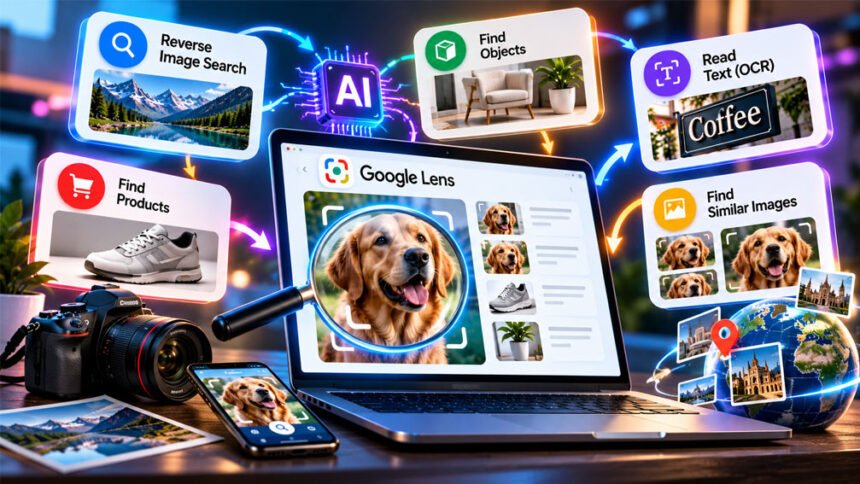
Image search techniques are ways to find information using pictures. You can search with words, upload a photo, select something inside a picture, or search for text shown in an image.
People use image search to find where a photo came from, identify objects, find products, discover similar pictures, and check where a photo has been used online.
Tools like Google Lens also use AI to understand pictures. This guide explains the main image search methods, how they work, and how to get better results.
What Are Image Search Techniques?
Image search techniques are different ways to search for pictures or find information about them.
You can search using words, a full picture, part of a picture, or a picture together with words.
There are two main types.
Text-to-image search means using words to find pictures. For example, you can search for “red house in winter.” The search engine will show pictures related to those words.
Image-to-information search starts with a picture. You upload a photo, and the search tool tries to understand it. It may find copies, similar pictures, products, places, objects, or text.
This is helpful when you see something but do not know its name. For example, you may see a plant or shoe that you like. Instead of trying to describe it, you can search with its picture.
Some tools also let you use a picture and words together. For example, you can upload a picture of a chair and add “replacement cushion.”
Modern systems may use content-based image retrieval (CBIR). This means they look at things inside a picture, such as its colors, shapes, patterns, and objects.
How Does Image Search Work?
Computers see images as pixels and numbers. Image search tools study this information to understand what is inside a picture.
Older systems used technologies such as SIFT and SURF. These looked at details such as edges and corners to compare pictures.
Modern systems use AI and deep learning. They can learn to recognize objects, shapes, text, and other details.
Some modern systems create an embedding for an image. An embedding is a group of numbers that represents important details in the picture. The system compares these numbers with other pictures to find similar results.
Search engines keep information about many pictures in an image index. When you upload a photo, the search engine compares it with pictures in that index.
It may check:
- Colors and shapes.
- Objects.
- People.
- Words inside the image.
- Information on the webpage.
- Words you add to your search.
Modern tools may still recognize an image after it has been resized, cropped, or compressed.
However, image search is not perfect. Different search engines have different databases. One tool may find a picture that another tool cannot.
11 Useful Image Search Techniques
There are many ways to search for images. The best method depends on what you want to find.
1. Keyword Image Search
Keyword image search means using words to find pictures.
For example, instead of searching:
office desk
you can search:
small home office desk with laptop
Adding more useful details can give better results. You can include the color, place, year, material, style, or type of object.
You can also search pictures from one website. For example:
site:nasa.gov Mars rover image
This can help when you think an image comes from a certain website.
Keyword search works best when you know how to describe the picture you want.
2. Reverse Image Search
Reverse image search means searching with a picture instead of words.
You upload a photo or use its image link. The search tool then looks for the same picture or similar versions online.
It can help you:
- Find websites using the image.
- Find older copies.
- Find edited or cropped copies.
- Find a larger version.
- Check a viral picture.
- See where a picture has been used.
- Look for its original source.
Google Lens and TinEye are popular tools for this.
Google Lens is useful for many types of visual searches. TinEye mainly helps find copies and changed versions of the same picture.
Try more than one search tool when the image is important. Different tools may give different results.
Also, the oldest result you find is not always the original source. Another website may have published the picture even earlier.
3. Visual Similarity Search
Visual similarity search finds pictures that look like your image.
Reverse image search asks:
“Where else is this picture used?”
Visual similarity search asks:
“What other pictures look like this?”
For example, you can upload a photo of a chair and find other chairs with a similar design.
This is useful for shopping, fashion, furniture, home design, and finding creative ideas.
Google Lens and Pinterest Lens can help with visual similarity searches.
However, this method is not always useful when you are trying to find the original source of a picture.
4. OCR and Text Search
OCR means optical character recognition.
It is technology that reads words inside pictures.
OCR is useful for:
- Screenshots.
- Signs.
- Menus.
- Receipts.
- Product labels.
- Scanned documents.
After the words are found, you may be able to copy, search, or translate them.
For example, Google Lens can read words on a menu and help translate them.
Text inside a picture can also help you identify it. A road name, shop name, product number, or building name may give useful clues.
Google Lens has OCR features. Tesseract is another well-known OCR tool.
OCR may have problems with blurry photos, very small words, unusual fonts, or difficult handwriting.
5. Color and Pattern Search
Color search helps you find pictures based on color.
For example, a designer may search for backgrounds and choose only blue ones.
This can be useful for graphic design, branding, home design, and mood boards.
However, color alone cannot tell you what an image shows. A blue car and blue water may have similar colors but are very different things.
Pattern search looks for similar designs and textures. It can be useful for finding fabrics, wallpaper, tiles, prints, and other designs.
6. Object and Region Search
A picture may contain many different things. Searching the full picture can sometimes give poor results.
Object search lets you select only the thing you want to search.
For example, a picture may show a person, car, building, and shop sign. If you want information about the car, select only the car.
If you want to find the location, search the building or shop sign.
Google Lens and Bing Visual Search can search selected parts of pictures.
For difficult images, try:
- Searching the full picture.
- Searching the main object.
- Searching an important background detail.
Try to select only the important object. Too many objects may confuse the search tool.
7. Facial Recognition Search
Facial recognition is technology that compares faces.
It can be used for identity checks, security systems, and organizing personal photos.
Facial recognition is different from reverse image search. Reverse image search may find the same profile picture on another website without actually identifying the person’s face.
TinEye, for example, does not offer facial recognition.
Face search also has privacy and legal concerns. A person’s face may be treated as biometric information. Laws are different in different countries.
Facial recognition can also make mistakes. Image quality, lighting, age, and camera angle can affect the result.
A possible face match should not be treated as proof of someone’s identity.
8. Metadata and EXIF Search
Pictures can contain hidden information called metadata.
Photos taken with cameras or phones may contain EXIF information, such as:
- Camera or phone model.
- Date and time.
- Camera settings.
- Editing software.
- GPS location, when available.
- Copyright information.
Tools such as ExifTool can read this information.
Metadata can help when checking an image, but it is not always reliable. It can be removed or changed.
Social media sites, messaging apps, screenshots, and editing tools may remove some metadata.
If a picture has no metadata, it does not mean the picture is fake. If metadata is available, it also does not prove the picture is real.
Metadata should be used as an extra clue.
9. Context-Based Image Search
The words around a picture can help explain what it shows.
Search engines may look at the image name, caption, heading, alt text, and nearby paragraphs.
For example, the same laptop picture could appear in a technology article or on a shopping website. The surrounding words help explain why the picture is there.
A caption may also tell you the person’s name, location, date, event, or photographer.
Context search is less useful when there is no helpful information around the image.
10. Multimodal AI Search
Multimodal AI search means using pictures and words together.
For example, you can upload a picture of a sofa and ask for a similar sofa in dark green.
The picture shows the AI what you mean. Your words explain what you want.
Google Lens can use an image together with extra search words. Other AI tools can also answer questions about pictures.
This can be useful for shopping, research, and identifying objects.
However, AI can give wrong answers. Important information should always be checked.
11. Search by Image for Shopping and Product Discovery
Image search can help you find products when you do not know their names.
You can select a product in a picture and search for it. The results may show similar products, brands, or shopping websites.
You can make the search better by adding:
- Brand.
- Model.
- Color.
- Material.
- Size.
- Price.
- Store name.
- Replacement part.
For example, you can search with a picture of running shoes and add “waterproof.”
Using a picture and words together can give better shopping results.
How to Use Google Lens
Google Lens is a tool for searching with pictures.
It can identify objects, read words, find products, recognize places, and show similar pictures.
You can also select only one part of an image.
Google Lens on a Computer
On a computer, you can use Google Images to search with a picture.
You can upload an image, drag it into the search box, or use an image link when this option is available.
You can also select a smaller part of the image after Google analyzes it.
Chrome also has Google Lens features that can help you search pictures directly from webpages.
Adding words to your image search can help you get more specific results.
Google Lens on Android
Android users can access Google Lens through supported Google apps.
Open the Google app and tap the Lens icon. You can take a new picture or choose one from your phone.
Chrome also supports Lens searches.
Some Android phones support Circle to Search. It lets you circle or tap something shown on your screen and search for it.
This feature may depend on your phone, software version, and location.
Google Lens on iPhone
iPhone users can use Google Lens through supported Google apps.
You can take a new picture or choose an existing photo.
You can also select one part of the image and add words to make your search more specific.
Google Lens vs. TinEye vs. Other Image Search Tools
Different tools are useful for different types of image searches.
| Tool | Best For | Main Strength | Main Limit |
|---|---|---|---|
| Google Lens | General image search | Finds objects, text, products, and similar pictures | May focus on similar results |
| TinEye | Finding image copies | Finds matching and changed copies | Not designed for object or face identification |
| Bing Visual Search | Products and objects | Searches objects and related pictures | Results may be different from other tools |
| Pinterest Lens | Ideas and inspiration | Useful for fashion, food, décor, and design | Not mainly made for checking image sources |
| Yandex Images | Extra image results | Gives another set of search results | Results can vary |
Google Lens is useful for general searches. It can help identify products, objects, text, and other details.
TinEye is more focused on finding copies and changed versions of a picture.
Bing Visual Search is another option for finding products and objects.
Pinterest Lens is useful when you want ideas for fashion, food, home décor, and design.
Using more than one tool can be useful when finding the source of an image is important.
How to Find the Original Source of an Image
Start with reverse image search.
Search the full picture with Google Lens and another tool such as TinEye. Look for older copies and trusted websites.
If you cannot find useful results, crop the image. Remove text, borders, logos, or other added parts if they are causing problems.
You can also search important details separately. These may include a building, car, shop sign, landmark, product, or visible words.
When you find an older copy, open the webpage. Check the photographer, publisher, date, caption, and source.
Follow these sources back as far as possible. You may find the original photographer, company, stock photo website, news agency, or publisher.
Remember that the oldest search result is not always the original source.
How to Check Whether an Image Is Real, Edited, or AI-Generated
There is no single tool that can always tell you if a picture is real, edited, or created by AI.
It is better to use several methods.
Start with reverse image search. Look for older copies and compare their dates and sources.
Check details inside the picture. Look at signs, buildings, logos, weather, clothes, and visible words.
If you have the original image file, check its metadata. It may show the date, device, location, or editing software. However, this information can be changed or removed.
Google’s About this image feature may also provide information about where some images have appeared online.
C2PA Content Credentials can give information about how some digital content was created or edited.
Google’s SynthID can add an invisible mark to some AI-generated content.
However, these technologies are not used for every image. A picture without these marks is not automatically real.
AI image detectors can also make mistakes. Strange hands or unusual text can be clues, but they do not prove that an image was created by AI.
Always use several clues before making a final decision.
A Practical Image Verification Workflow
You can use these steps to check an important picture:
- Search the full picture.
- Try another image search tool.
- Search important parts separately.
- Read visible words with OCR.
- Look for older copies.
- Check metadata when available.
- Look for Content Credentials or other source information.
- Check the claimed date, place, and event.
- Compare information from several reliable sources.
Using more than one method can give you a clearer idea of where an image came from.
Image Copyright, Licensing, and Usage Rights
Finding an image online does not mean you are free to use it.
Pictures on Google Images, blogs, news websites, Pinterest, and social media may be protected by copyright.
Google Images has a Usage Rights filter that can help you find pictures with licensing information.
However, you should still check the original website.
Before using a picture, ask:
- Who made it?
- What licence does it have?
- Do I need to give credit?
- Can I use it for business?
- Am I allowed to edit it?
Common Creative Commons licences include:
| Licence | Business Use | Editing | Credit |
|---|---|---|---|
| CC0 | Yes | Yes | Usually not needed |
| CC BY | Yes | Yes | Needed |
| CC BY-SA | Yes | Yes, with rules | Needed |
| CC BY-ND | Yes | No | Needed |
| CC BY-NC | No | Yes | Needed |
| CC BY-NC-SA | No | Yes, with rules | Needed |
| CC BY-NC-ND | No | No | Needed |
Always read the licence on the original website before using an image.
Reverse image search may help you find the original creator. However, finding the creator does not mean you automatically have permission to use the picture.
Privacy and Safety When Searching Images
Pictures may contain private information.
A photo could show someone’s face, home, documents, computer screen, car number plate, or other personal information.
The image file may also contain location information.
Be careful before uploading private pictures to an online image search service.
Different services have different privacy rules. Check their privacy policies when you are searching with private or sensitive images.
TinEye has said that images uploaded for searches are not added to its searchable image collection.
Face searches need extra care because faces may be treated as biometric information.
Laws are different in different places. Also, a face match does not always mean two pictures show the same person.
Why Image Search Sometimes Fails
Sometimes image search does not give useful results.
The Image Has Not Been Indexed
The picture may be new, private, behind a login, or on a website that search engines cannot access.
Solution: Try another search engine. You can also search words, names, or objects shown in the picture.
The Image Was Heavily Edited
Cropping, filters, text, and other changes can make the original picture harder to find.
Solution: Search different parts of the picture separately.
The Image Quality Is Poor
Small or blurry pictures have fewer clear details.
Solution: Try to find a larger and clearer version.
The Picture Contains Too Many Things
Pictures with many people or objects may confuse the search tool.
Solution: Crop the image and search only the important object.
You Are Using the Wrong Search Method
You may get similar pictures when you actually want the original image.
Solution: Use reverse image search for copies, visual similarity search for similar pictures, and OCR for words.
One Search Engine Finds Nothing
Different search engines have different image databases.
Solution: Try another image search service.
How to Get Better Image Search Results
Use clear and specific words when searching.
Use the best-quality picture available.
Crop the picture if you only want to search one object.
Search important background details separately.
If the picture contains words, search those words too. Shop names, road signs, model numbers, and company names can be useful.
Use filters such as color, size, date, and usage rights when available.
If one method does not work, try another method instead of repeating the same search.
Image Search for Website Owners and SEO
Website owners can make their pictures easier for search engines to understand.
Use simple and clear filenames.
For example:
black-leather-crossbody-bag.jpg
is better than:
IMG2031.jpg
Write useful alt text that clearly explains the picture. Do not add the same keyword many times.
Place images near related text. Headings, captions, and nearby paragraphs can help search engines understand the image.
Use suitable image sizes for phones, tablets, and computers.
Common web image formats include JPEG, PNG, WebP, GIF, SVG, BMP, and AVIF.
Image sitemaps can also help search engines find images on a website.
Original photos, screenshots, diagrams, and graphics can be useful because they provide something different from common stock photos.
Image Search Tools and APIs for Developers
Developers can add image search features to websites and apps.
Google Cloud Vision can help find similar images and identify text, objects, logos, and landmarks.
Amazon Rekognition can study pictures and videos. It can find objects, scenes, and text. It also has face-related tools for supported uses.
Tesseract is a free, open-source OCR tool. It is mainly used for reading text from images.
Developers can also build their own visual search systems using image embeddings and vector search.
For example, an online shop could let customers upload a picture and find similar products in its own store.
The right tool depends on what the developer needs to do.
How Image Search Is Changing With AI
AI is making image search easier and more useful.
Google introduced Circle to Search in 2024. On supported Android phones, users can select something already shown on the screen and search for it.
Google Lens also has AI features that let people ask questions about pictures and objects.
Some Lens features can also work with video and voice.
Image search is now becoming part of phones, browsers, and other everyday tools.
At the same time, AI can create very realistic pictures. This makes checking images more important.
Tools such as Content Credentials and SynthID can provide extra information about some pictures.
However, these systems do not work with every image. You should still check the source and other information when a picture is important.
Common Uses of Image Search Techniques
People use image search for many reasons.
Shoppers can use it to find products when they do not know their names.
Designers can find similar colors, patterns, styles, and ideas.
Students and researchers can use OCR and object search to find useful information.
Journalists and fact-checkers can use reverse image search to check pictures and find older copies.
Businesses and photographers can search for places where their images have been reused.
Travelers can use visual search to identify landmarks, buildings, signs, plants, and other things.
Image search can also help find larger pictures, translate signs, identify animals, and research old photos.
Benefits and Limitations of Image Search
Image search is helpful when you do not know the right words to describe something.
You can use a picture to identify objects, find products, read text, discover similar pictures, and look for the source of a photo.
However, image search is not perfect.
Search engines cannot find every picture on the internet. New and private images may not appear.
Edited or cropped pictures can be difficult to find.
Two pictures looking similar does not mean they show the same thing or person.
Metadata can be changed or removed. AI detectors can also give wrong results.
Reverse image search also cannot prove who owns a picture.
For important searches, check several sources before trusting the result.
Bottom Line
Different image search techniques are useful for different jobs.
Use keyword search when you know how to describe the picture. Use reverse image search to find copies and possible sources. Use visual search to find similar pictures. Use OCR to read words inside images.
Google Lens is useful for general image searches. TinEye is more focused on finding copies of the same image.
AI has made image search more powerful, but search results are not always correct. For important images, use more than one tool and check reliable sources.
Frequently Asked Questions
What are image search techniques?
Image search techniques are ways to find or check pictures online. You can search using words, photos, or AI tools.
How can I search Google using a picture?
Use Google Lens. Upload a picture or choose one from your device to search for it.
What is the difference between reverse image search and Google Lens?
Reverse image search helps find copies of a picture. Google Lens can also find objects, products, text, and similar images.
How do I find the original source of an image?
Use reverse image search and check older results. Try more than one search tool for better results.
Can image search tell if a picture is AI-generated?
Not always. AI detectors, metadata, and reverse image search can give clues, but they are not always correct.
Why can’t reverse image search find my picture?
The picture may be new, private, edited, or not in the search engine’s database. Try another image search tool.
Is it legal to use images found on Google?
Not always. Many images have copyright, so check the original source and licence before using them.
What is the best image search tool?
Google Lens is good for general searches, while TinEye is useful for finding copies of an image.
More To Explore:
Methatreams Guide: Sports, Safety, Legality, and Legal Alternatives