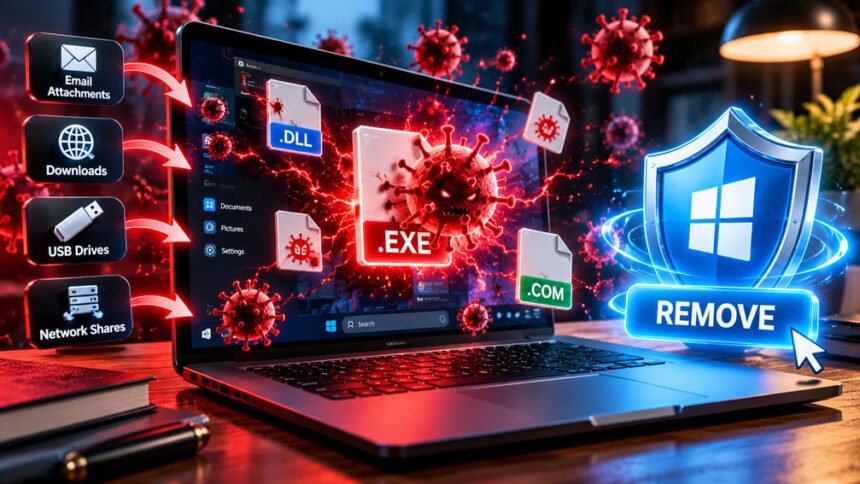
An infector virus is a type of computer virus that adds harmful code to normal program files. It is also called a file infector virus. It often targets files such as .exe, .dll, and .com.
People may search for this virus when their computer becomes slow, programs start crashing, or antivirus software finds infected files. This guide explains what an infector virus is, how it spreads, its types, warning signs, risks, removal steps, and ways to prevent it.
What Is an Infector Virus?
An infector virus is malware that puts harmful code inside a normal program file. Traditional file infectors often target .exe, .dll, and .com files.
The normal file becomes a host for the virus. When you run the infected program, the virus can also start. It may then search for other program files and infect them.
A main feature of this virus is self-replication. This means it can make copies of itself by infecting more files.
An infected program may still work normally. Because of this, users may not quickly notice that something is wrong.
Infector virus is not the name of one specific virus or product. It is a general term for a type of computer virus. Different file infectors can work in different ways and cause different problems.
How Does an Infector Virus Work?
A file infector needs a host file. It adds harmful instructions to a normal executable file.
The infection may start when someone downloads unsafe software, opens an infected attachment, connects an infected USB drive, or installs software from an untrusted website.
When the infected program runs, the virus becomes active. It may search the computer for other executable files and add its code to them.
The normal program may still open and work. This can make the infection harder to notice.
The basic process is:
Entry → Infection → Execution → Copying → More infected files
Some infector viruses do more than spread. They may also damage files, turn off security software, install other malware, or perform other harmful actions.
The exact behavior depends on the virus.
How an Infector Virus Spreads
Infector viruses can spread in several ways.
Unsafe downloads are one common source. Software from unknown websites may contain infected files. Pirated and cracked programs can also be risky because their files may have been changed.
Email attachments may contain infected or harmful files. Running one of these files can start the infection.
USB drives can carry infected files from one computer to another. The virus may become active when the infected file is run on the new computer.
Shared network folders can also create risks. If an infected computer has permission to change files in a shared folder, some viruses may spread to those files.
Simply having an infected executable on a computer does not always mean the virus has started. In many cases, the infected program needs to be run first.
Types of Infector Viruses
Different file infectors work in different ways. Some run for a short time, while others stay active in the computer’s memory.
Direct-Action or Non-Resident Infector
A direct-action infector starts when an infected file is run.
It searches for other files to infect. After doing this, it stops running instead of staying active in memory.
The infection can start again when another infected program is opened.
Memory-Resident Infector
A memory-resident infector can stay active in the computer’s RAM.
It may continue working even after the original infected program is closed. It can watch file activity and infect other suitable programs.
This can make a memory-resident virus harder to remove.
Sparse Infector
A sparse infector does not infect every possible file.
Instead, it may infect only a few files or wait before infecting more. This can make the virus harder to notice and detect.
Multipartite Virus
A multipartite virus can use more than one way to infect a computer.
For example, it may infect program files and also affect a boot-related area of a storage drive.
This can make removal harder because cleaning only the infected program files may not remove the whole infection.
Related Virus Categories
Some sources also mention macro viruses and boot-sector viruses when discussing infectors. However, they work differently from traditional file infectors.
A macro virus normally uses macros or scripts inside documents, such as some Microsoft Word or Excel files.
A boot-sector virus targets information used when a computer or storage device starts.
These viruses can be related to file infectors, but they are not exactly the same thing.
How Infector Viruses Hide From Detection
A file infector can be difficult to notice because the infected program may still work normally.
Some advanced viruses also use special methods to hide.
Polymorphism means the virus changes parts of its code when it makes new copies. This can make simple antivirus detection harder.
Some viruses also use encryption or code obfuscation to hide their harmful code.
A memory-resident virus can stay active in RAM. This allows it to continue working during the computer session.
Some variants may also try to hide changes made to infected files.
Modern antivirus programs therefore use more than simple virus signatures. They may also watch for unusual behavior, such as one program suddenly changing many executable files.
Signs of an Infector Virus
There is no single sign that proves a computer has an infector virus. However, several problems together can be a warning.
Programs may suddenly crash, show errors, or stop opening. Programs that normally open quickly may also become slower.
Executable files may show unexpected changes. Antivirus software may report that normal program files have been infected or changed.
Security software may also stop working or become disabled.
Other possible signs include:
- Slow computer performance
- Programs crashing often
- Programs refusing to open
- Unexpected changes to files
- Unknown processes running
- Unusual network activity
- Unexpected pop-ups
- Antivirus problems
These problems do not always mean there is an infector virus. Hardware problems, broken software, Windows errors, and other malware can cause similar symptoms.
A proper antivirus scan is needed to check the computer.
What Damage Can an Infector Virus Cause?
The damage depends on the virus.
Some file infectors mainly spread from one program to another. Others can cause more serious problems.
An infected program may crash, stop working, or become damaged. If many files become infected, the computer may also become slower or unstable.
Some variants may carry extra harmful code. This could damage data, affect important system files, install more malware, or interfere with antivirus software.
A file infector can also create problems on a network. If infected files are stored in shared folders, other users may run them and put more computers at risk.
Removing the virus can sometimes damage programs too. This happens because the virus is attached to a legitimate file.
In these cases, replacing the infected program with a fresh copy from its official source may be safer.
Infector Virus vs. Other Malware
Infector viruses, Trojans, worms, and ransomware are all types of malware, but they work differently.
Infector Virus vs. Trojan
A Trojan usually looks like a normal or useful program. Its goal is to trick someone into running it.
A file infector works differently. It adds its code to existing files and can infect more files.
A Trojan does not need to copy itself into other programs.
Infector Virus vs. Worm
A worm can copy itself and spread without attaching itself to a normal program file.
A traditional file infector usually needs a host file. It spreads by infecting other suitable files.
Both can spread, but they use different methods.
Infector Virus vs. Ransomware
Ransomware normally blocks access to files or encrypts data and then asks the victim for money.
A file infector mainly spreads by infecting legitimate files.
This means ransomware and file infectors have different main purposes and behaviors.
Examples of File Infector Viruses
Neshta and Ramnit are two malware families connected with file-infection behavior.
Neshta
Neshta is known for infecting Windows executable files, including .exe files.
An infected executable can help the virus spread when that file is run.
However, not every file infector works exactly like Neshta. Different viruses can have different features and effects.
Ramnit
Ramnit is another malware family linked with file infection.
It has also been connected with other malware behaviors. This shows that one malware family can sometimes use several methods instead of fitting into only one category.
How to Remove an Infector Virus
Removing an infector virus can be difficult because many legitimate program files may already be infected.
Finding and deleting only one infected file may not solve the problem. Other infected programs could start the infection again.
Be careful when backing up files from an infected computer. Executable files and old software installers may also be infected.
1. Disconnect the Computer
First, disconnect the computer from the network.
Turn off Wi-Fi and unplug the Ethernet cable if you use one.
This can help stop the malware from reaching shared files or communicating with other computers.
If it is a work or school computer, tell the IT team about the problem.
2. Use Windows Security or Reputable Antivirus Software
Run a full system scan with Windows Security or another trusted antivirus program.
A full scan checks more files than a quick scan. This is useful because an infector virus may have changed programs in different folders.
Follow the antivirus program’s recommended actions when threats are found.
3. Quarantine Detected Files
Quarantine infected files instead of manually deleting unknown files.
Quarantine keeps the detected file in a protected area where it normally cannot run.
This is useful because an infected file may also be part of a legitimate program.
Do not restore a quarantined file unless you are confident that the detection was wrong.
4. Run a Second Security Scan
After removing or quarantining detected threats, scan the computer again.
A second scan can help find remaining threats.
You can also use another trusted malware scanner, such as Malwarebytes, as a second check when needed.
If the same virus keeps returning, the infection may need more advanced cleanup.
5. Repair Windows System Files
If malware has damaged Windows files, Windows includes a tool called System File Checker (SFC).
Open Command Prompt as administrator and run:
sfc /scannow
This tool checks protected Windows files and tries to repair damaged ones.
SFC is not an antivirus program. Run a malware scan separately.
6. Reinstall Infected Programs
If an installed program has infected executable files, removing and reinstalling the program may be the safest option.
Download a fresh installer from the software developer’s official website or another trusted source.
Do not reuse an old installer if you think it may also be infected.
7. Check Other Devices and Shared Storage
Check USB drives that were connected to the infected computer.
Other computers that received executable files from the infected system may also need a security scan.
Businesses should check shared folders and network storage if the infected computer had access to them.
Do not open a suspicious executable just to test it. Scan it first.
When Should You Reinstall Windows?
Sometimes removing individual infected files is not enough.
A clean Windows installation may be needed if the virus keeps returning, important Windows files are infected, antivirus software cannot work correctly, or the computer remains unstable.
Reinstalling Windows gives the computer fresh operating system files.
After the reinstall, download programs again from trusted sources.
Be careful when restoring backups. Old .exe files, scripts, and software installers may still contain the infection.
If the computer contains important business data, getting help from an IT or cybersecurity professional may be safer before wiping the system.
Can an Infector Virus Spread Through Cloud Storage?
An infected executable can be copied through a cloud sync service if it is stored inside a synced folder.
For example, an infected program file could be uploaded to cloud storage and then downloaded or synced to another computer.
This does not mean the cloud service itself has a virus.
The infected file is the problem. If someone runs that file on another suitable computer, it could start another infection.
It also does not mean every photo, video, or document in the same cloud folder automatically becomes infected.
How to Prevent Infector Virus Infections
Keep Windows and your programs updated. Updates can fix security problems and improve protection.
Keep real-time antivirus protection turned on.
Only download programs from trusted sources. Official developer websites and trusted app stores are safer than unknown download websites.
Avoid pirated and cracked software. These programs may contain changed or infected executable files.
Be careful with unexpected email attachments, especially executable files.
Scan unfamiliar USB drives before opening files from them.
Businesses can also limit access to shared folders and separate important parts of their networks. This can reduce how far an infection can spread.
Regular backups are also important.
A common method is the 3-2-1 backup rule:
- Keep three copies of important data.
- Use two different types of storage.
- Keep one copy separate or offsite.
Businesses should also teach staff about suspicious attachments, unsafe downloads, and unknown USB drives.
What to Do After Removing the Virus
Run another full antivirus scan after cleanup.
Check whether programs now work normally and make sure your antivirus stays active.
Watch the computer for returning problems. New detections, crashes, strange file changes, or disabled security software may mean the infection is still present.
Update Windows and other programs.
Reinstall damaged software using fresh installers from trusted sources.
Check backups before restoring them, especially old executable files and installers.
If the malware may have stolen passwords, change important passwords from a clean and trusted device.
If the virus keeps returning after several cleanup attempts, consider reinstalling Windows or getting professional help.
Bottom Line
An infector virus, also called a file infector virus, adds harmful code to legitimate program files. It can spread to more files when infected programs are run.
Removing this type of virus may be harder because many programs can become infected.
If you find an infection, disconnect the computer, run trusted antivirus scans, quarantine infected files, and replace damaged programs with clean copies. A serious infection may require a fresh Windows installation.
Keeping software updated, using antivirus protection, downloading programs safely, and keeping clean backups can lower the risk.
Frequently Asked Questions
What is an infector virus in simple words?
An infector virus adds harmful code to normal program files. It can spread when an infected file is opened.
How does an infector virus spread?
It can spread through unsafe downloads, email attachments, USB drives, infected software, and shared files.
What files does an infector virus infect?
It mainly infects program files such as .exe, .dll, and .com. The files it targets can depend on the virus.
What are the signs of a file infector virus?
Common signs include a slow computer, crashing programs, changed files, and antivirus problems.
Is an infector virus the same as a Trojan?
No. An infector virus spreads by infecting files, while a Trojan usually hides inside software that looks safe.
Can an infector virus damage my files?
Yes. It can damage program files and cause apps to crash or stop working.
Can antivirus remove an infector virus?
Yes. Trusted antivirus software can remove many infector viruses, but serious infections may need extra repair.
How can I prevent an infector virus?
Use antivirus software, keep your system updated, avoid unsafe downloads, and scan unknown USB drives.
More To Explore:
File Content Conversion Guide: Formats, Methods, and Benefits